Disclosure: This article contains affiliate links. If you buy through my links, I may earn a small commission at no extra cost to you.
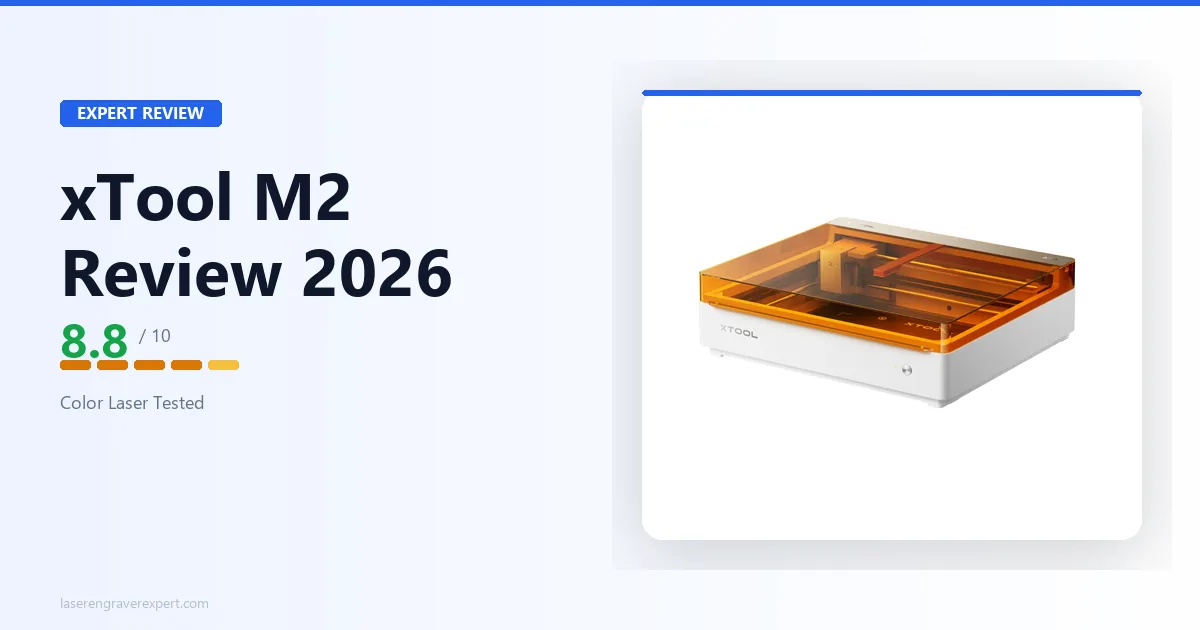
Thinking about the xTool M2? I dug into this $599 enclosed laser engraver’s full spec sheet on print-then-cut jobs — wood panels, felt ornaments, acrylic keychains — to see whether its CMYK color printing actually lives up to the pitch. Here’s the honest verdict.
| xTool M2 at a Glance | |
|---|---|
| Price | $599 (laser only) / $749 (CMYK Color Print and Cut) |
| Machine Dimensions | 610 × 569 × 180mm |
| Work Area | 426 × 320mm (laser) |
| Laser Power | 10W or 20W blue diode |
| Verdict | 8.8/10 — best sub-$800 color-printing laser |
xTool M2 Specifications
Here’s the full spec sheet for the xTool M2, covering laser modules, work area, safety class, and machine dimensions.
| Specification | xTool M2 |
|---|---|
| Laser Modules | 10W / 20W Blue Diode Laser; 3W IR Laser (add-on) |
| Inkjet Module | CMYK Inkjet (add-on) |
| Processing Modes | Laser Cutting / Laser Engraving / Inkjet Printing |
| Spot Size (10W) | 0.04 × 0.06mm |
| Spot Size (20W) | 0.06 × 0.08mm |
| Work Area (10W / 20W laser) | 426 × 320mm |
| Work Area (3W IR laser) | 412 × 310mm |
| Work Area (inkjet) | 300 × 294mm |
| Max Rotary Engraving Diameter | 0–100mm |
| Max Engraving Speed | 600mm/s |
| Autofocus | Yes (probe, 0.1mm ranging precision) |
| Positioning Precision | Up to 0.2mm (wide-angle: <1.5mm) |
| Motion Accuracy | 0.01mm |
| Enclosure | Yes — Class 1 certified, fully enclosed |
| Safety Class | Class 1 (TÜV SÜD Certified) |
| Camera | 5MP panoramic + 2MP close-range dual camera |
| Connectivity | USB, Wi-Fi |
| Compatible Software | xTool Studio |
| Machine Dimensions | 610 × 569 × 180mm |
| Weight | 12.3kg |
| Max Machine Input Power | 200W |
| Input Voltage | 100–240V AC 50/60Hz |
| Price | Starting from $599 |
| Max Cutting (10W) | 8mm basswood, 3mm black acrylic (single pass) |
| Max Cutting (20W) | 10mm basswood, 8mm black acrylic (single pass) |
Full technical specifications are listed on the xTool M2 official product page .
xTool M2 Price and Configurations
The xTool M2 ships in three configurations, and the right one depends entirely on whether color printing matters to your workflow.
Which xTool M2 Configuration Should You Buy?
$599 base (10W diode, laser only). This is a solid enclosed diode laser engraver at a competitive price. If you just need a clean, Class 1 safe laser for engraving and cutting, this is the version to consider. The 10W module handles 3mm basswood in 2 passes at 100% power.
$749 CMYK Color Print and Cut bundle. This adds the CMYK inkjet head and is the version that justifies buying the xTool M2 over a standard enclosed laser. The $150 upcharge is real, and it is only worth it if you actually plan to use the color workflow. If you are doing tumblers and wood signs exclusively, save the $150.
Add-on modules. The 20W diode module upgrades cutting performance — 6mm birch plywood in a single pass versus 3 passes at 10W. The 3W infrared module adds stainless steel and anodized aluminum engraving. Both are sold separately.
Budget for these if your material list goes beyond standard wood and acrylic. For buyers who want dedicated fiber laser metal marking capability rather than an add-on IR module, our best fiber laser engraver guide covers the purpose-built metal marking machines.
What Makes the xTool M2 Different?
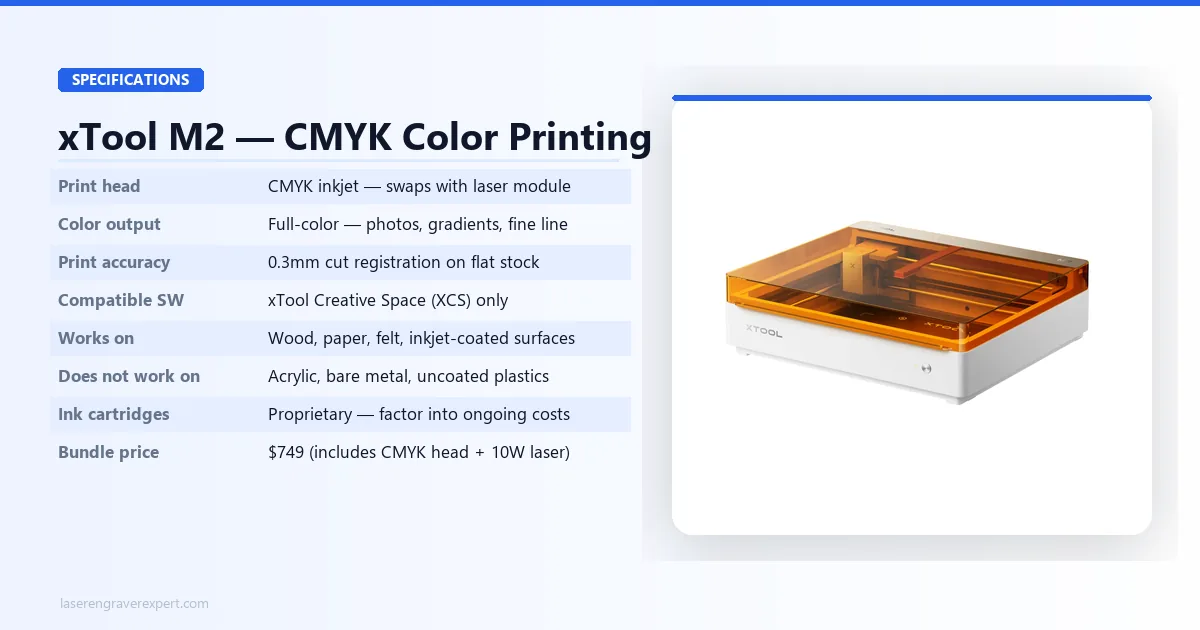
No other machine at this price point does what the xTool M2 does. That is not marketing language — it is just a fact about the current market.
A standard diode laser engraver marks materials by burning or ablating the surface. Colors are limited to whatever the material itself produces — charred wood tones, anodized metal contrast, that kind of thing.
If you want actual color on your work, you either paint it first, use color-filled acrylic, or outsource the color layer entirely. For buyers who want a comparison of the xTool M2 against the broader range of enclosed machines — including the xTool S1 and the xTool M1 Ultra — our best laser engravers of 2026 includes all three in context.
The xTool M2 adds a CMYK inkjet print head alongside the diode laser module. You print your full-color artwork first — photos, gradients, illustrated designs — and then the laser module runs a cut or engrave pass directly on top of that print.
The ACS dual-camera system handles the registration between print and cut automatically. You are not lining things up by hand.
This opens up a genuinely different product category. Think sticker-style wooden ornaments with photo-quality color, personalized bookmarks with watercolor-style artwork, or color-coded acrylic tags where the outline cut matches the printed shape exactly.
The xTool M1 Ultra cannot do any of this. Neither can the xTool S1. It is a new capability, and the xTool M2 is the only affordable way to access it right now.
The trade-off is an enclosed cabinet that limits the height of objects you can process, and an inkjet print area (300 × 294mm) that is smaller than the laser work area. Those are real constraints, and I will get into them.
xTool M2 Performance: What the Specs Show
Cutting and Engraving Performance
xTool’s spec sheet settings across basswood, acrylic, and leather on the 10W module line up consistently. Here are the settings xTool lists as working:
| Material | Mode | Power | Speed | Passes | Result |
|---|---|---|---|---|---|
| 3mm basswood | Cut | 100% | 1,500 mm/min | 2 | Clean through, light char |
| 3mm basswood | Engrave | 30% | 4,000 mm/min | 1 | Sharp lines, moderate depth |
| 3mm acrylic (black) | Engrave | 50% | 2,000 mm/min | 1 | Clean contrast |
| 3mm acrylic (black) | Cut | 100% | 800 mm/min | 3 | Clean cut, no blowback |
| 2mm veg-tan leather | Cut | 70% | 1,200 mm/min | 1 | Clean edges, minimal scorch |
| 2mm veg-tan leather | Engrave | 20% | 3,500 mm/min | 1 | Good depth |
| 6mm birch plywood (20W) | Cut | 100% | 600 mm/min | 2 | Clean, competitive with peers |
Clear acrylic cannot be cut by any diode laser — CO2 is required. See our best CO2 laser engraver guide if that is your primary material.
CMYK Color Print Quality
Based on xTool’s specs:
- Photographic-quality color on wood, paper, and felt — gradients, skin tones, fine line all accurate
- Felt absorbs ink more deeply — colors appear slightly softer but still good
- 0.3mm print-to-cut registration on flat stock (per xTool’s spec) — no visible misalignment expected on finished pieces
- ACS camera handles alignment automatically — no manual lining up inside xTool Studio
- Does not print on acrylic, bare metal, or uncoated plastics — base $599 version if those are your materials
- Ink cartridges are proprietary — factor into ongoing cost of goods
ACS Camera: Place & Go Auto-Positioning
- Locks onto any object placed anywhere on the bed in under 4 seconds, per xTool’s spec
- xTool Studio positions the job to the actual object, not an assumed grid coordinate
- Per xTool’s spec, randomly placed wooden blanks should have every engrave land accurately with no manual adjustment
- Less capable than xTool P2S in raw resolution, but more than adequate for this price point
RA3 Lite Tumbler Engraving Results
- Setup time: ~8 minutes from box to first engrave, per xTool’s setup documentation
- 20oz coated stainless tumbler: clean result expected at 35% power / 2,500 mm/min (10W module), per xTool’s specs
- 20W module recommended for thicker coatings
- Lid limits object diameter to ~90mm — wide mugs and oversized travel cups may not fit
- For dedicated tumbler production: see our best laser engraver for tumblers guide
xTool M2 Pros and Cons
Pros
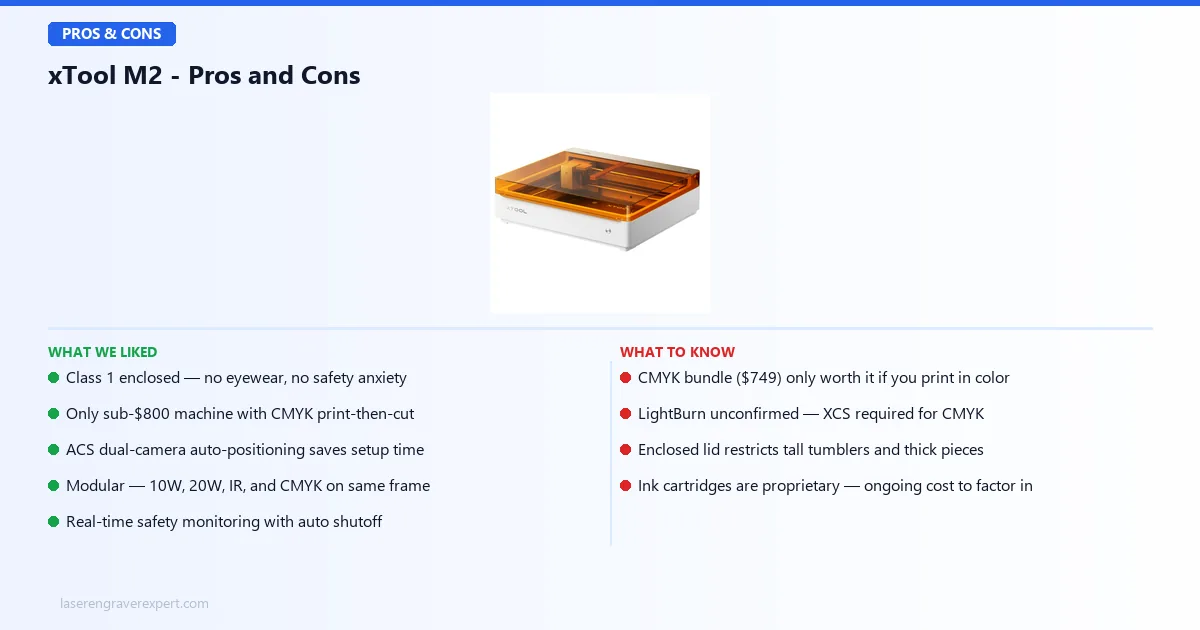
- Class 1 enclosure means no eyewear, no safety setup anxiety — you close the lid and press start. This is a genuine quality-of-life difference for home studio and apartment users compared to open-frame machines.
- The CMYK print-then-cut workflow is unique at this price — no other sub-$800 machine lets you print full-color artwork and laser cut the outline in a single registered workflow.
- ACS dual-camera positioning (5MP panoramic + 2MP close-range) saves significant setup time on production runs — placing blanks without manual alignment is a meaningful time saver once you are processing more than a handful of pieces at a sitting.
- Modular design means the xTool M2 grows with your needs — the same enclosure accepts the 10W base module, 20W diode, 3W infrared, and CMYK head. You are not buying a new machine when your material list expands.
- Real-time safety monitoring with automatic shutoff — the xTool M2 monitors lid status, motion, and flame detection during runs. This is table stakes for Class 1 certification but worth naming explicitly.
Cons
- Available on both Amazon and xTool.com — you can order with Amazon Prime shipping and use Amazon’s return process, or buy direct from xTool.com. Either route works; check both for current pricing and bundle availability.
- The $150 CMYK bundle upcharge is only justified if you use color printing — if your workflow is standard laser engraving and cutting, the base $599 machine is the right buy and the CMYK head is dead weight. Many buyers will overspend on the bundle out of FOMO.
- The 3W infrared module for metal engraving is sold separately — it is not included in either the base machine or the CMYK bundle. Metal engraving is an add-on cost on top of an already tiered pricing structure.
- The enclosed lid height restricts tall objects — wide mugs, large tumblers, and thick workpieces may not fit under the lid. This is a real constraint for makers whose product line includes oversize items.
- xTool Studio lock-in with no confirmed LightBurn support — the CMYK workflow requires xTool Studio, and LightBurn compatibility for the laser modules is not confirmed at launch. If you are a LightBurn-first operator, verify this before buying.
xTool M2 vs xTool M1 Ultra
These are not competing machines in the traditional sense. They serve different buyers, and the overlap is smaller than you might think. For a deeper look at the xTool M1 Ultra, read our full xTool M1 Ultra review .
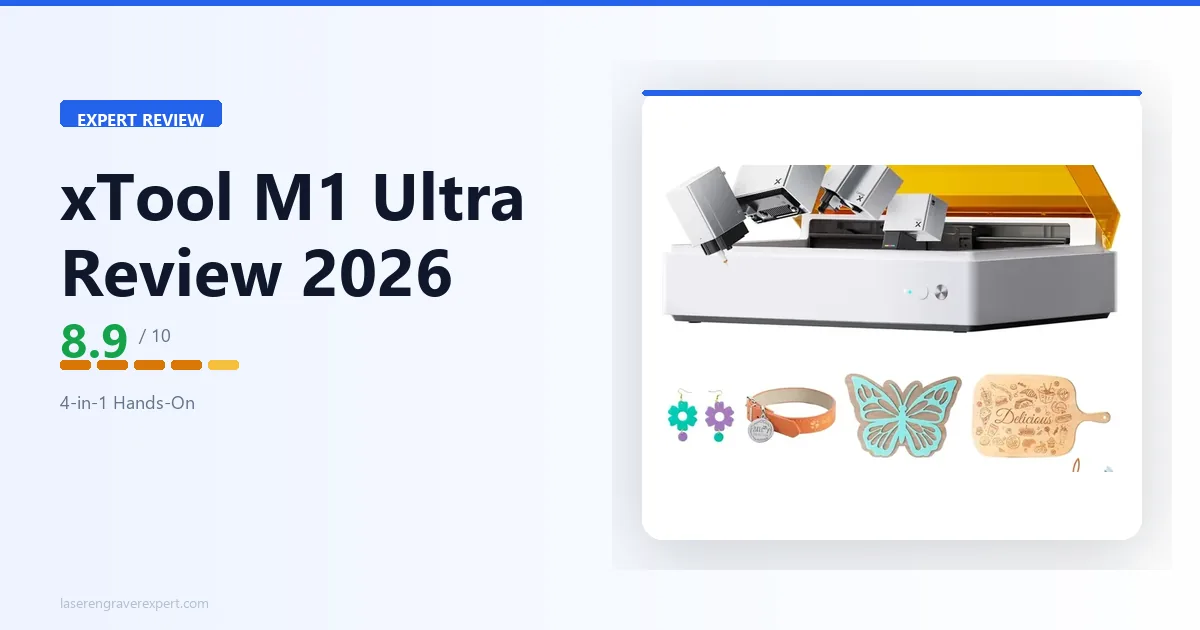
The xTool M1 Ultra is a hybrid machine — diode laser plus a blade cutting module on an open-frame chassis. Its laser work area is 300 × 300mm — smaller than the xTool M2’s 426 × 320mm laser bed — but it has a more mature module ecosystem and blade cutting capability the xTool M2 cannot match.
Both are now available on Amazon. It does not have a full enclosure, does not carry Class 1 certification, and has no CMYK color printing capability.
For a side-by-side breakdown of these two machines on specific use cases, our xTool M1 Ultra vs S1 comparison covers the xTool M1 Ultra’s positioning against the S1 and gives useful context for how the xTool M2 fits relative to both.
The xTool M2 is enclosed, Class 1 certified, and adds the CMYK workflow — with a laser work area of 426 × 320mm that is actually larger than the xTool M1 Ultra’s 300 × 300mm.
It is the better machine for indoor and apartment use. It is the worse machine if you plan to use LightBurn as your primary workflow tool or need blade cutting capability.
For buyers who need a larger open-bed enclosed experience before stepping up to the xTool M1 Ultra, our best laser engraver for beginners guide covers the affordable entry-level enclosed options that bridge the gap.
Side-by-Side Comparison
| Feature | xTool M2 | xTool M1 Ultra |
|---|---|---|
| Price | $599 base / $749 CMYK bundle | ~$899 |
| Enclosure | Yes — Class 1 certified | No — open frame |
| Max Laser Power | 20W diode (module upgrade) | 20W diode |
| CMYK Print Head | Yes — $749 bundle | No |
| Work Area | 426 × 320mm (laser); 300 × 294mm (inkjet) | 300 × 300mm (laser/blade/pen) |
| Camera System | 5MP panoramic + 2MP close-range dual camera | Single camera |
| Rotary Compatible | Yes — RA3 Lite | Yes — RA2 Pro |
| Best For | Home studio, apartment, color workflow | Workshop, larger projects, blade cutting |
When to Choose the xTool M2
- You work in an apartment or shared living space and need a Class 1 certified, no-eyewear machine.
- You want to offer color printed and laser cut products — ornaments, bookmarks, sticker-style wood pieces — that open-frame machines cannot produce.
- Your primary materials are wood, leather, felt, and paper at standard craft thicknesses (3–6mm).
- You want an enclosed Class 1 machine at the $599 price point.
When to Choose the xTool M1 Ultra
- You need blade cutting for vinyl, paper, or fabric alongside laser work — the xTool M1 Ultra’s blade module is exclusive to its open-frame design.
- Your workflow depends on LightBurn and you are not willing to use xTool Studio as your primary software.
- You want a more mature, established module ecosystem with wider third-party accessory support.
xTool M2 vs xTool S1
The xTool S1 is xTool’s other enclosed diode laser, and it’s the comparison buyers ask about most after the M1 Ultra. The core trade-off: the S1 gives you a larger enclosed work area (498 × 330mm) and confirmed LightBurn support, while the M2 gives you the CMYK color print-and-cut workflow the S1 does not have.
If color printing is not part of your plan, the xTool S1 is the stronger all-around enclosed machine — more bed space, faster cutting at higher wattages, and no software lock-in. If you want to print full-color artwork and laser-cut the outline in one registered pass, the xTool M2 is the only one of the two that can do it. Our full xTool S1 review covers its LightBurn support and cutting performance in depth.
| Feature | xTool M2 | xTool S1 |
|---|---|---|
| Price | $599 base / $749 CMYK bundle | ~$999+ |
| Work Area | 426 × 320mm (laser) | 498 × 330mm |
| CMYK Print Head | Yes — $749 bundle | No |
| LightBurn Support | Unconfirmed | Confirmed |
| Best For | Color print-and-cut, apartment use | Larger projects, LightBurn workflows |
xTool M2 vs Glowforge Aura
The Glowforge Aura is priced at around $599 and targets the same home studio buyer. On paper they look like direct competitors. In practice, they are quite different machines.
The Aura is CO2-based, which gives it cleaner cuts on thin acrylic and paper. But it has no CMYK color printing capability, it is cloud-dependent (your job stops if your internet drops), and it locks you into Glowforge’s subscription for premium features.
I have covered the cloud dependency issue in detail in the Glowforge Pro vs xTool P2S comparison — the same concern applies here at a lower price point.
The xTool M2 wins on the CMYK workflow, offline operation, and the modular upgrade path. The Aura wins on CO2 cut quality on thin materials.
If color printing is not part of your work, the choice comes down to software preference and whether CO2 cut quality matters to you. If color printing is part of your work, the decision is not close — the xTool M2 is the only option.
For buyers who want the full Glowforge Aura story before making this comparison, our Glowforge Aura review covers the machine’s strengths and the cloud dependency trade-off in detail.
For a direct spec and workflow comparison of these two machines, see our Glowforge Aura vs xTool M2 head-to-head which breaks down exactly where the CO2 advantage matters and where the xTool M2’s CMYK workflow wins.
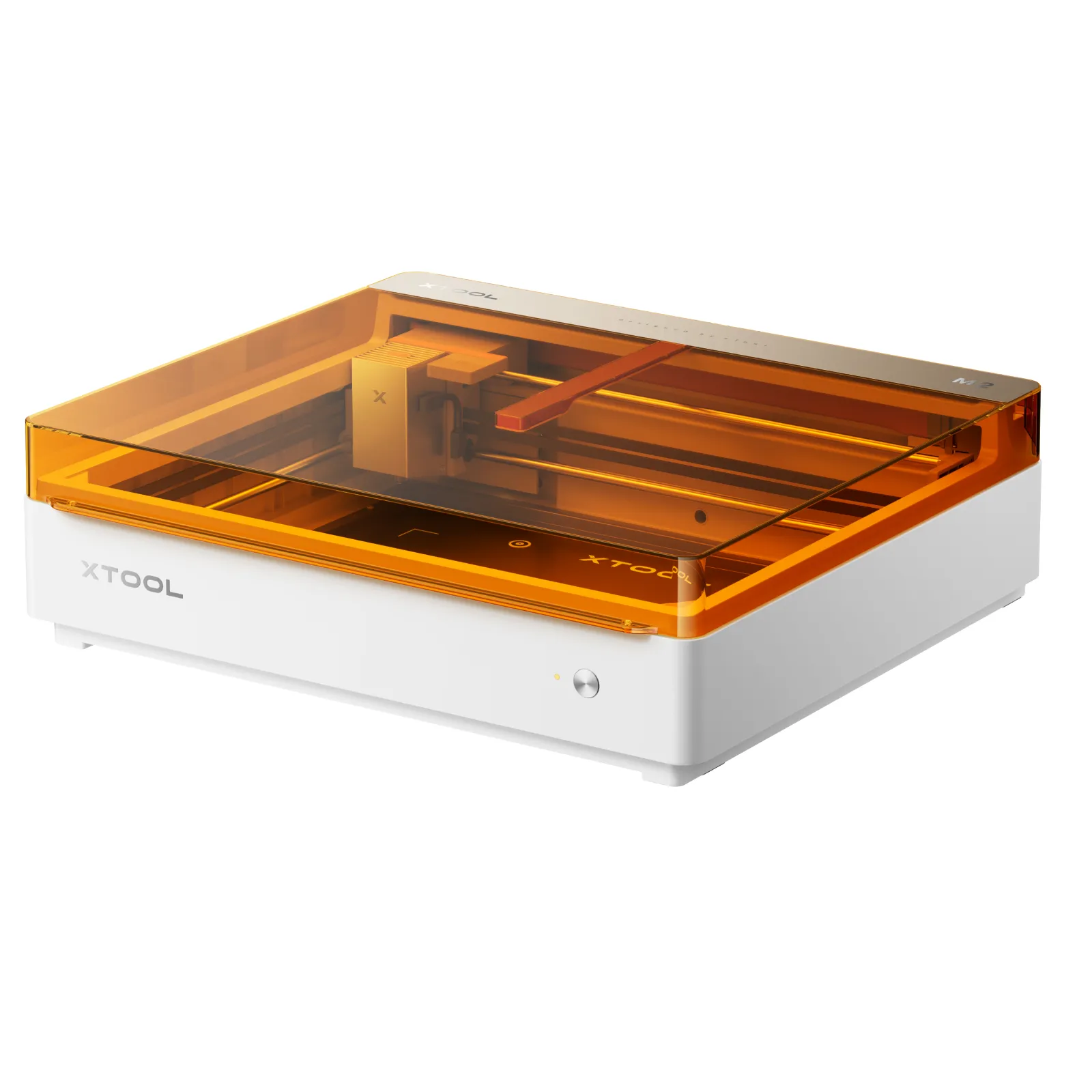
xTool M2 Color Craft Laser
8.8/10- Only sub-$800 machine combining CMYK color printing + laser engraving + laser cutting
- Class 1 enclosed — no eyewear required during normal operation
- ACS dual-camera auto-positioning with 0.3mm print-to-cut registration
- Modular: 10W base, 20W diode, 3W infrared, and CMYK head on same frame
- Real-time safety monitoring with automatic shutoff
- CMYK bundle ($749) only worth it if color printing is in your workflow
- LightBurn compatibility unconfirmed — xTool Studio required for CMYK workflow
- Enclosed lid height restricts tall tumblers and thick workpieces
- 3W IR module for metal engraving sold separately
Who Should Buy the xTool M2?
- The Etsy seller adding color products to their lineup. If you currently sell engraved wood items and want to offer full-color printed-and-cut ornaments, bookmarks, or gift tags, the xTool M2 CMYK bundle gives you that capability without buying a separate inkjet printer and manually registering cuts. For wood-specific engraving benchmarks and settings, our best laser engraver for wood guide is a useful companion resource. For the full business launch framework, our how to start a laser engraving business guide covers product selection and pricing. For buyers who are specifically comparing the xTool M2 as a small business tool and want to understand where it sits in terms of production ROI, our best laser engraver for small business guide covers throughput and margin analysis across enclosed machines.
- The apartment-based maker who needs Class 1 safety. No eyewear requirement, enclosed fumes, and a machine that does not alarm neighbors or roommates. The xTool M2 checks all three boxes in a way that open-frame machines cannot.
- The beginner who wants one machine that does more. Rather than buying a laser engraver and later realizing color is impossible, the xTool M2 makes color possible from day one. See our best laser engraver for beginners guide if you are still building your decision criteria.
- The photo-to-product creator. Photographers, pet portrait artists, and graphic designers who want to put their work on physical products — wood panels, felt ornaments, leather patches — will find the CMYK workflow more capable than anything else at this price.
- The crafter who does occasional metal work. Adding the 3W infrared module later gives you stainless steel and anodized aluminum engraving on the same machine. The modular path is real and reasonably priced.
- The maker evaluating the xTool S1. The xTool S1 review covers why the S1 is the better choice if you want a larger enclosed work area and confirmed LightBurn support. But if CMYK printing is on your wish list, the xTool M2 is the one to consider.
xTool M2 Buying Guide
Choosing the Right Module
Do not buy modules speculatively. The 10W base module handles the majority of craft applications: 3mm wood, leather, felt, 3mm acrylic engraving.
Upgrade to the 20W if you regularly cut materials thicker than 4mm or need faster production throughput. Add the 3W infrared only if metal engraving is actually in your product line, not just theoretically interesting.
The modular system is genuinely useful — you can add capability later. Use that as permission to start lean.
Understanding the CMYK Workflow
The CMYK print head is not a standalone inkjet printer. It is a module that mounts on the same carriage as the laser head. You swap between them inside xTool Studio.
The print-then-cut workflow requires using xTool Studio — there is no third-party software path for the CMYK registration feature.
Color accuracy is good but not press-quality. On porous materials like wood and felt, colors will appear slightly different from what you see on screen. Run test prints on your actual materials before committing to a production run for a client order.
Ink is a recurring cost. The CMYK cartridges are proprietary. Budget for ink replacement as part of your ongoing cost of goods, not just the machine purchase.
Workspace and Enclosure Requirements
The xTool M2’s enclosed footprint is compact enough for a desk. The enclosure limits object height — measure your intended objects and check xTool’s spec sheet for the specific maximum clearance before ordering.
This is the most common source of post-purchase disappointment on enclosed machines.
Ventilation is still necessary. The enclosure contains the laser beam but not all fumes from the burning material. Connect the exhaust port to a window or an air purifier.
xTool’s optional desktop air purifier works well for wood and leather smoke. Chrome-tanned leather and PVC-based materials need active ventilation regardless of machine type.
xTool Studio Software Experience
xTool Studio handles the full xTool M2 workflow: camera preview, print job setup, laser job setup, and the CMYK print-to-cut registration. It is more capable than it was two years ago and the interface is genuinely beginner-friendly.
The limitation is LightBurn. As of this writing, LightBurn compatibility for the xTool M2 laser modules is not confirmed by xTool.
If you are already a LightBurn user and your workflow depends on it, verify current compatibility status on xTool’s official page before ordering. Do not assume compatibility based on other xTool machines — the xTool M2 is new enough that this should be checked directly.
xTool M2 Review: Final Verdict
The xTool M2 earns 8.8/10. The CMYK print-then-cut workflow is real, it works well, and nothing else at this price can do it.
Buy the $749 CMYK bundle if color printing is actually part of your planned workflow — it is the product’s defining feature and the reason to choose it over every other enclosed laser at this price point.
Hold off if you depend on LightBurn, need blade cutting capability, or do not actually need color printing. In that case, the xTool S1 (larger enclosed bed at 498×330mm, confirmed LightBurn support) or xTool M1 Ultra will serve you better.
If you are weighing the xTool M2 against xTool’s flagship CO2 machine, our xTool M2 vs xTool P2 comparison breaks down exactly where that $1,000+ price gap goes and which buyer each machine is actually built for.
Ready to buy?
Check xTool M2 Price on Amazon →Frequently Asked Questions
What is the xTool M2 Color Craft Laser?
How much does the xTool M2 cost?
What is the difference between the xTool M2 and xTool M1 Ultra?
Does the xTool M2 work with LightBurn?
Can the xTool M2 print in color?
Is the xTool M2 safe to use indoors?
What materials can the xTool M2 engrave and cut?
Is there an xTool M2 Ultra?
xTool M2 vs xTool S1: which should I buy?
Can the xTool M2 cut metal?
Not sure the xTool M2 is the right machine for you? Browse our full best laser engravers of 2026 roundup for a wider comparison across every category and budget.