Laser Engraver vs Cricut: I Made the Switch (2026)
Laser engraver vs Cricut: I switched after 2 years. What you gain, what you lose, and which one fits your materials, budget, and craft goals.
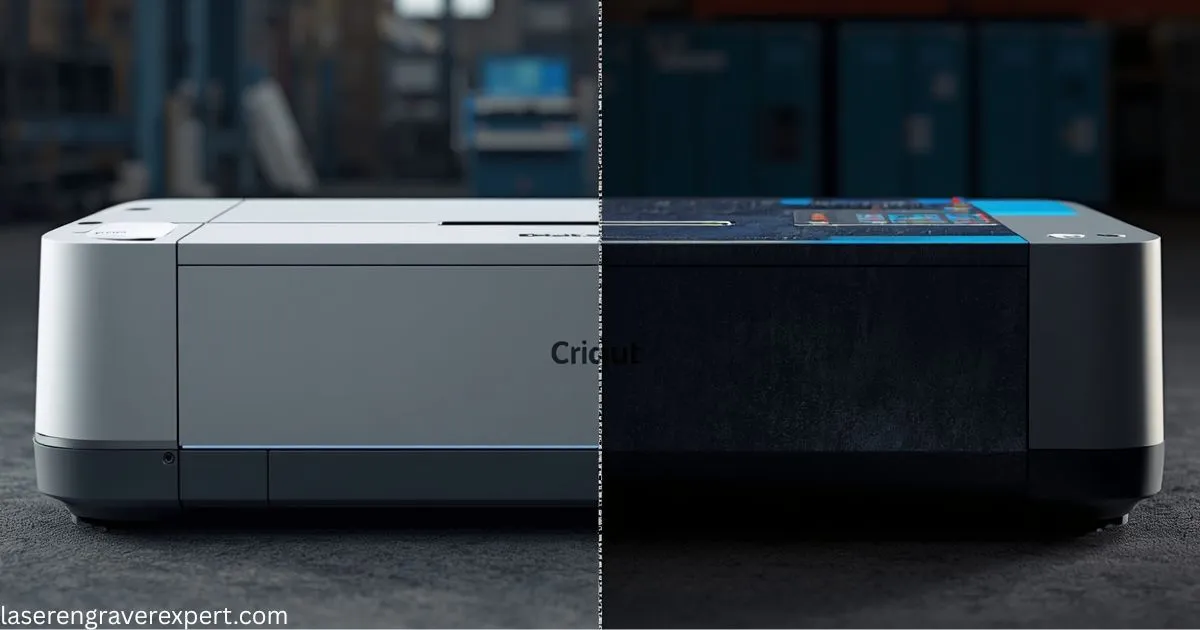
If you’re searching for a “Cricut laser engraver,” here’s the short version: Cricut doesn’t make one. The Maker 3 is a blade cutter, not a laser. I used my Cricut Maker 3 for two years before I bought the xTool D1 Pro 20W. I was happy with the Cricut. I really was. But I kept running into the same wall: every time a customer asked me to engrave a name onto a cutting board, personalize a leather wallet, or cut through 6mm plywood for a sign, I had to say no. If you are currently in that same position and want to understand what a laser adds to a craft business before diving into the technical comparison, our best laser engraver for small business guide covers the revenue side of this transition specifically.
So I bought the laser. And the first three weeks were honestly frustrating. The software was unfamiliar, I scorched two pieces of expensive walnut, and I nearly didn’t set up the ventilation properly until I smelled how bad the fumes were. Nobody warned me about any of that.
But six months later? The laser makes me about 60% of my craft income. The Cricut still runs two or three times a week for vinyl work. Both machines have a permanent spot in my workspace.
This article is everything I wish someone had told me before I switched: what you gain, what you lose, what it actually costs, and which laser to buy if you’re coming from a Cricut background. It is the most complete laser engraver vs Cricut comparison I could write, because I have lived both sides of it.
Affiliate disclosure: Some links in this article are affiliate links. If you buy through them, I earn a small commission at no extra cost to you. I bought my xTool D1 Pro with my own money and my opinions are my own.
Quick Answer: Laser Engraver or Cricut?
A Cricut is a blade-based cutting machine designed for vinyl, paper, and fabric. A laser engraver uses a focused light beam to cut and engrave materials like wood, acrylic, leather, and metal. Cricut machines excel at heat transfer vinyl projects; laser engravers win for permanent engraving and cutting thicker rigid materials. They are complementary tools, not direct replacements; the right choice depends entirely on what materials you work with most.
What Each Machine Actually Does (No Jargon)
What a Cricut Does Best
A Cricut uses a blade (or a scoring wheel, foil tool, or knife blade depending on your model) to cut shapes out of sheet materials. The Cricut Maker 3 handles over 300 materials including vinyl, cardstock, iron-on (HTV), faux leather, and fabric. Its superpower is anything that needs to be cut from a roll or sheet without burning or marking the surface.
The Cricut Design Space software is genuinely excellent for beginners. You can upload an SVG, resize it, click “Make It,” and get a clean cut in under five minutes. That simplicity is real, and it’s worth acknowledging directly before we talk about lasers.
What a Laser Engraver Does Best
A laser engraver fires a focused beam of light at a surface to either engrave (removing material to create marks) or cut (burning all the way through). The materials it excels on are rigid: wood, acrylic, leather, anodized aluminum, slate, bamboo, and certain plastics. A 20W diode laser like the xTool D1 Pro can cut through 10mm basswood in a single pass and engrave at a resolution fine enough to reproduce a photograph.
Nothing a Cricut can do touches that. When you need a name burned permanently into a wooden cutting board, a laser is the only option. For buyers who want the full laser technology overview before committing to a machine type, our diode vs CO2 vs fiber laser comparison explains the differences in plain language with material tables.
Where They Overlap, and Where They Don’t
Both machines can cut thin materials like cardstock and some leathers. Both can cut acrylic, but a laser does it faster, cleaner, and to greater thicknesses. The overlap is narrow enough that most experienced crafters treat them as separate tools serving different jobs.
The hard line: a laser cannot safely touch PVC-based vinyl. Burning PVC releases chlorine gas. If HTV apparel is your bread and butter, a laser does not replace your Cricut. Full stop.
Laser Engraver vs Cricut: Side-by-Side Comparison
| Feature | Cricut Maker 3 | xTool D1 Pro 20W |
|---|---|---|
| Primary method | Blade cutting | Laser engraving / cutting |
| Material range | Vinyl, paper, fabric, thin materials | Wood, acrylic, leather, metal, stone |
| Max cutting depth | ~2.4mm (knife blade) | ~10mm (single pass, basswood) |
| Engraving capability | None | Yes: photos, fine detail, 0.05mm precision |
| Speed (production) | Moderate | Fast, especially on batch runs |
| Price range | $399–$499 | $499–$599 |
| Software | Cricut Design Space ($9.99/mo or $95.99/yr) | xTool Creative Space (free) |
| Learning curve | Low, beginner-friendly | Moderate, power/speed tuning required |
| Ventilation required | No | Yes, always |
| Safety equipment | None needed | Laser safety glasses, fire monitoring |
| Ongoing material cost | Vinyl, mats, blades | Minimal, just raw materials |
| Business scalability | Moderate | High, batch engraving up to 12+ items simultaneously |
7 Key Differences That Actually Matter for Crafters
1. Materials: Laser Wins on Depth, Cricut Wins on Vinyl
The Cricut Maker 3 handles materials a laser cannot touch: heat transfer vinyl, printable vinyl, regular adhesive vinyl, fabric, felt. These are blade-cut materials, and the Cricut does them better than anything else in the consumer price range.
But the moment you move to rigid materials (wood, acrylic, leather, slate), the laser is in a different category. A Cricut with a knife blade can score the surface of 2mm basswood. A laser can cut 10mm hardwood and engrave a photograph onto it at the same session. That’s not a small difference. Our best laser engraver for wood guide documents what a 20W diode achieves across nine different wood species with tested settings.
If more than 30% of your current or planned work involves wood, acrylic, or leather, the laser’s material range will open projects you literally cannot do on a Cricut. For leather specifically, our best laser engraver for leather guide covers what clean results look like on vegetable-tanned, chrome-tanned, and faux hides.
2. Engraving vs Cutting: They’re Not Doing the Same Job
This is the single biggest misconception I see in crafting communities. People ask “which one cuts better?” but that’s not really the right question.
A Cricut cuts by dragging a blade. It does not engrave. The deepest “mark” it can leave on wood is a faint score line from the knife blade. A laser engraver burns material away with precision down to 0.05mm, which means it can reproduce a photograph, engrave a signature, or carve lettering at 6-point size that’s still perfectly legible.
Those are fundamentally different capabilities. If you want to add someone’s name to a wooden gift, the laser is the only machine here that does that job.
3. Cost of Entry and Cost Over Time
Upfront costs are close: a Cricut Maker 3 runs $399–$499. The xTool D1 Pro 20W is $499–$599. So you’re talking about roughly the same initial investment.
But the ongoing costs flip significantly. Cricut Design Space costs $9.99/month or $95.99/year: that’s a subscription you pay forever. xTool Creative Space is free. Cricut mats need regular replacement ($10–$20 each). The laser has no consumables beyond the material you’re engraving.
Over 24 months, the Cricut subscription alone adds $192–$240 to the total cost. Factor in mats and replacement blades and the laser often works out cheaper to run, especially at higher production volumes.
4. Software and Learning Curve
Cricut Design Space is the easiest crafting software I’ve used. That is genuine praise, not a consolation. It handles resizing, font selection, image upload, and cut settings with almost no learning curve. If a 12-year-old can run it on the first day (and they can), that tells you something about how well it’s designed.
xTool Creative Space has improved a lot in the last two years. It’s not intimidating once you’ve spent a few sessions with it. But you will spend those sessions learning what power and speed settings do to different materials, understanding how to set focal length, figuring out why your engraving looks better at 4,000mm/min than 6,000mm/min on pine. That tuning process doesn’t exist in Design Space.
The honest summary: budget two to three weeks of real practice before you’re producing results on the laser that match what you could do on a Cricut on day one. After that learning period, the laser’s ceiling is dramatically higher.
5. Safety and Ventilation: The Part Cricut Owners Underestimate
This is where most guides fail Cricut users making the switch. When I got my D1 Pro, I understood the laser was powerful. What I underestimated was the fumes.
Engraving wood, even light engraving, produces fine particles and volatile organic compounds. Cutting acrylic produces fumes that are unpleasant and potentially harmful with repeated exposure. The xTool D1 Pro is an open-frame machine, which means there’s no built-in fume containment.
At minimum, you need a box fan with a carbon filter exhausted to the outside. Many people, myself included, add an air purifier with HEPA and activated carbon filtration as a secondary layer. You also need laser safety glasses rated for your wavelength (450nm for the D1 Pro’s diode laser). These are non-negotiable, not optional.
A Cricut sits on your desk and requires zero safety infrastructure. A laser engraver requires setup investment beyond the machine price. Budget $50–$150 for a basic ventilation solution when you’re calculating total cost.
6. Speed and Batch Production
For single items, the speed difference between a Cricut and a laser is small. Both can process a 6-inch design in a few minutes.
Batch production is where the laser becomes a serious business tool. I currently run 12 wooden ornament blanks simultaneously on my D1 Pro using a grid layout. The laser engraves all 12 in the same time it would take to do three or four individually, because travel moves between items at full speed and the machine never stops to reposition material.
With a Cricut, you cut one mat at a time. You can fit multiple shapes on a mat, but you’re still loading, cutting, unloading, and reloading. At scale, the laser’s batch capability is simply faster, and that’s before accounting for the fact that the Cricut cannot engrave those items at all.
For anyone running or considering a craft business, the best laser engraver for small business guide covers this throughput argument in much more detail.
7. Resale Value and Business Scalability
Cricut machines hold reasonable resale value: around 40–60% of purchase price if they’re clean and include accessories. xTool machines hold similar resale value in the hobbyist market.
But scalability works differently. If your craft business grows and you need more output, buying a second Cricut gives you roughly double the vinyl cutting capacity, which is good if vinyl is your market. Adding a second laser, or upgrading to a CO2 machine like the xTool P2, unlocks entirely new product categories. Engraved wood signs, personalized drinkware, custom leather goods, slate coasters. Each new material opens a new revenue stream. For tumbler engraving specifically, one of the highest-volume personalization categories, our best laser engravers for tumblers guide covers the setup and machine combinations that make drinkware production viable.
That asymmetry matters if you’re thinking about where you want your business in two or three years, not just today. If monetizing your laser work is part of the plan, our guide to starting a laser engraving business covers niche selection, pricing, and landing your first customers with step-by-step detail.
Can a Laser Engraver Replace a Cricut?
Here’s the honest answer broken into four scenarios:
- Yes, for most wood and acrylic work. Anything you’d use a Cricut knife blade on (sign blanks, thin plywood shapes) a laser does faster and cleaner.
- Yes, for leather engraving and cutting. Laser-cut leather has cleaner edges and the ability to add engraved detail the Cricut cannot produce.
- No, for heat transfer vinyl. HTV on apparel requires a blade cutter. A laser cannot touch PVC safely.
- No, for paper and cardstock crafting. The Cricut’s blade produces cleaner, fume-free cuts on paper. The laser works on cardstock but the charred edges aren’t ideal for greeting cards and paper flowers.
The practical decision framework: if more than 30% of your work is on wood, leather, or acrylic, a laser engraver will pay for itself in expanded capabilities and new product offerings. If you’re 80% HTV and paper, keep your Cricut and revisit this question when your material mix shifts.
For a broader look at laser types before buying, the diode vs CO2 vs fiber laser guide explains the technology differences clearly without requiring a physics degree. For official material safety data, Cricut’s material compatibility list and xTool’s material guide are the authoritative references for what each machine can and cannot handle. On fume safety, the FDA’s laser product classification guidelines explain why proper ventilation is required for Class 4 laser products.
Should You Keep Your Cricut and Add a Laser?
Short answer: yes, if you can afford to do both.
These machines do not compete for the same workflow. My Cricut runs every week for vinyl decals, HTV shirts, and paper crafts. My laser runs every week for wood signs, leather keychains, engraved drinkware, and acrylic pieces. They split the workload cleanly.
The only reason to sell your Cricut before buying a laser is budget. If the $500 for the laser requires liquidating the $400 Cricut, that might make sense, but know you’re giving up your vinyl and fabric capability entirely, and plan accordingly.
If you can keep both, keep both. You will use both.
Best Laser Engraver for Cricut Users (My Top Pick)
Not every laser is the right first laser for someone coming from a Cricut. The ideal machine for this transition is approachable enough that the learning curve doesn’t crush you in the first month, but capable enough that you’re not outgrowing it in six months. Here’s what I recommend.
xTool D1 Pro 20W: Why It’s the Right First Laser for Cricut Owners
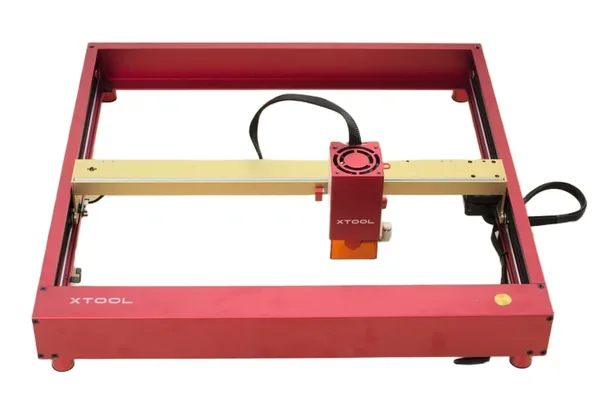
xTool D1 Pro 20W
9.1/10- Most beginner-friendly diode laser software
- 20W cuts 10mm basswood in one pass
- Fast engraving at up to 10,000mm/min
- Strong community and xTool support
- Free xTool Creative Space software
- Open frame, external ventilation required
- Laser safety glasses mandatory, not included
- Steeper software learning curve than Design Space
The xTool D1 Pro 20W is the machine I bought, and it’s the one I’d buy again. It sits at a price point ($499-$599) that’s close enough to the Cricut Maker 3 that the jump doesn’t feel catastrophic, and the xTool Creative Space software is the closest thing to a beginner-friendly laser experience available.
Best for: Cricut owners who do 30%+ of their work on wood, acrylic, or leather and want a laser that won’t require an engineering degree to operate.
What You’ll Love
The 20W optical output means you’re not fighting the machine on materials. It cuts 10mm basswood cleanly in a single pass and 3mm acrylic in two passes at moderate speed. For engraving, the compressed spot size produces fine detail: 8-point text on wood is legible with clean edges, which matters when you’re making personalized gifts.
xTool Creative Space is the software story that surprises most new laser owners. It handles SVG import, text tools, image tracing, and material presets. The presets are genuinely accurate: wood settings on branded xTool materials work on the first attempt without manual tuning. That’s not universally true in this industry. Within two weeks of regular use, most Cricut owners find the software approachable.
The D1 Pro also has an active community. xTool’s Facebook group has nearly 100,000 members, which means that when you scorch a piece of walnut at 3am, someone has been through it before and the answer exists. That community support matters enormously during the learning curve.
For more detail on this machine specifically, our full xTool D1 Pro review covers the setup process, software walkthrough, and tested settings on eight materials.
What to Know Before You Buy
The D1 Pro is an open-frame machine. There is no enclosure, no built-in fume extraction, and no passive laser light blocking. You must set up ventilation before the first burn, not after. I’d suggest budgeting $80–$120 for a decent inline fan and carbon filter duct setup exhausting to a window or exterior wall.
Laser safety glasses rated for 450nm are mandatory. The D1 Pro does not come with them. xTool sells a compatible pair, or you can source them separately for $15–$30. Do not operate the machine without them.
The learning curve is real. Plan for your first two or three sessions to be practice runs on cheap scrap wood, not finished projects. Power and speed settings interact differently across wood species, and what works on basswood won’t work on pine or walnut without adjustment.
Who This Is For
The D1 Pro 20W is for the Cricut owner who wants to expand into wood, leather, and acrylic, and is willing to spend two to three weeks in the learning curve to get there. If you’re price-sensitive and willing to accept a more basic software experience, look at the Sculpfun below. If you’re coming from a Cricut and want the smoothest possible transition, the D1 Pro is the right call. For a full look at the D1 Pro against every other machine category, see our best laser engravers of 2026 guide . For buyers whose budget is tighter, our best laser engraver under $500 covers what’s achievable at the sub-$500 price point without sacrificing the core engraving capability that makes a laser worth switching to.
Runner-Up: Sculpfun S30 Pro Max (Best Budget Option)
The Sculpfun S30 Pro Max lands at $300–$350 and punches above its weight for the price. Its compressed spot size (0.08 x 0.06mm) produces finer engraving detail than most competitors at the same power level. Sculpfun’s own specs and owner samples show 6-point text resolving legibly on basswood, which is impressive at this price.
The trade-offs are real: the Sculpfun’s software ecosystem is less polished than xTool’s, community support is smaller, and there’s no flame detection sensor or tilt sensor, safety features the D1 Pro includes. You need to be more attentive during operation.
For a Cricut owner on a strict budget who primarily wants to work with wood and doesn’t need the premium software experience, the S30 Pro Max is a capable entry point. Our Sculpfun S30 Pro Max review has full tested settings and a detailed software walkthrough. For buyers who want the M1 Ultra’s multi-mode workflow (laser, inkjet printing, blade cutting, and pen drawing in one machine), our xTool M1 Ultra review covers the closest thing to a direct Cricut-plus-laser hybrid available at this price tier.
See the Sculpfun S30 Pro Max →
If You Want to Go Beyond Diode: xTool P2 CO2
If you look at the D1 Pro and think “I want more power, more materials, and a fully enclosed machine,” the xTool P2 CO2 is the next step up. It’s a 55W CO2 laser in an enclosed cabinet with built-in fume filtration, a passthrough slot for oversize material, and camera-based placement that works similarly to Glowforge’s workflow, but with a one-time price rather than a subscription.
The P2 costs significantly more ($4,500+) and is a different category of investment. It’s not a beginner machine. But if you’re planning to turn laser work into a real business and you want a machine that handles wood, acrylic, leather, fabric, glass, and more, without managing an open-frame ventilation rig, the P2 is what serious craft businesses use. Our xTool P2 review covers the full CO2 experience for buyers who want to understand that upgrade path before they reach it. I mention it here because some Cricut owners ask about it, and the answer is that it exists, it’s excellent, and it’s the machine you grow into after 12–18 months on a diode laser.
Buying Guide: What to Look for When Switching from Cricut
Before you spend a dollar, here’s what actually matters for a Cricut owner making this transition.
Power and Material Compatibility
Wattage in laser engravers is not like blade force in a Cricut: it’s a specification that determines which materials you can cut and how many passes you need. A 10W diode laser can engrave most materials well but struggles with thick hardwood. A 20W machine, like the D1 Pro, cuts 10mm basswood cleanly in one pass and handles 5mm acrylic.
For Cricut owners, 20W is the right starting point. It’s powerful enough to cover the full range of materials you’re likely to encounter in craft and small-business work without jumping into CO2 territory. For buyers who want to compare the D1 Pro against the xTool S1 before buying, our xTool S1 review covers the enclosed version with fume containment, a relevant consideration for home studios where a Cricut has been operating quietly.
Enclosure vs Open Frame
Open-frame lasers (like the D1 Pro) are less expensive and easier to upgrade, but they require you to build your own ventilation solution and have no passive laser light containment. Enclosed lasers (like the xTool S1 or xTool P2) contain fumes better, block laser light passively, and are generally safer in shared spaces. For Cricut users looking at enclosed laser options, our best laser cutter for beginners guide is the most relevant comparison: it focuses on closed machines that most closely mirror the Cricut’s plug-and-play experience.
If you’re working in a home studio with family members nearby, an enclosed machine is worth the premium. If you have a dedicated workspace with good ventilation control, open-frame is fine. Most Cricut owners I’ve spoken to find the open-frame setup manageable; it’s just an adjustment from the plug-and-play experience.
Our best laser engraver for beginners guide covers this tradeoff in more detail with specific enclosed vs open-frame recommendations.
Software Ecosystem
Coming from Design Space, you’ll notice software differences immediately. xTool Creative Space is the most Design Space-adjacent software in the laser world: it has presets, a friendly interface, and doesn’t require G-code knowledge to get started. LightBurn is the industry-standard professional software (one-time $60 license) and is more powerful but more technical.
My suggestion for Cricut owners: start with xTool Creative Space. Once you’ve built confidence on the hardware side, consider adding LightBurn. Many experienced users run both: Creative Space for quick jobs, LightBurn for complex projects.
Workspace and Ventilation Requirements
A Cricut fits on any desk. A laser engraver needs a dedicated surface (the D1 Pro footprint is about 18 x 20 inches) plus clearance for the ventilation hose running to a window or exterior vent.
Think through your setup before you buy. You need a stable surface (vibration affects engraving quality), an accessible window or exterior wall within 6–8 feet, and ideally a smoke detector you can temporarily disable or relocate, because even a properly vented laser will occasionally trigger nearby detectors during cutting runs.
For a look at the full laser market including premium and CO2 options, our best laser engravers guide covers the complete range from $200 hobbyist machines to professional-grade systems.
Frequently Asked Questions
Can a laser engraver do everything a Cricut can?
Is a laser engraver harder to use than a Cricut?
What is the cheapest laser engraver that beats a Cricut on wood?
Do I need ventilation for a laser engraver?
Can I use a laser engraver for heat transfer vinyl (HTV) projects?
Does Cricut make a laser engraver?
Final Verdict: Laser Engraver vs Cricut
You’ve read this far, which means you’re seriously considering making the switch, or at least adding a laser to your setup. Here’s how to decide:
- If you primarily do HTV, vinyl decals, paper crafts, or fabric work: keep your Cricut. A laser doesn’t replace that workflow.
- If you regularly get requests for engraved wood, personalized leather, or custom acrylic: a laser is the only machine that says yes to those jobs.
- If you’re building a craft business and want to scale: the laser’s batch engraving capability (12 wood ornaments in one run, 6 acrylic keychains simultaneously) makes production economics work in a way a Cricut never will.
- If you’re not sure: the xTool D1 Pro 20W at $499–$599 is the safest entry point. The software is manageable, the community is large, and you can sell it for 50–60% of purchase price if it turns out laser work isn’t your thing.
I kept my Cricut Maker 3. I also kept the xTool D1 Pro. Neither machine is leaving my studio. But if I had to pick one as the better business tool for where my work has gone (wood signs, personalized gifts, leather goods, batch production runs), it’s the laser, and it’s not close.
You Might Also Like
5 Best Laser Engravers for Slate 2026 – Tested & Ranked
We compare 5 laser engravers for slate using manufacturer specs and settings guides: best for coasters, and best budget pick. No filler picks. Updated June 2026.
6 Best Laser Engravers Under $1,000 2026 – Ranked
We compare 6 laser engravers under $1,000 using manufacturer specs: best diode, best CO2, and best for small business. No filler picks. Updated June 2026.
5 Best Laser Engravers (and Cutters) for Beginners 2026
Looking for the best laser engraver or laser cutter for beginners? We compared 5 beginner-friendly machines on manufacturer specs to find the easiest to use, safest, and best value in 2026.