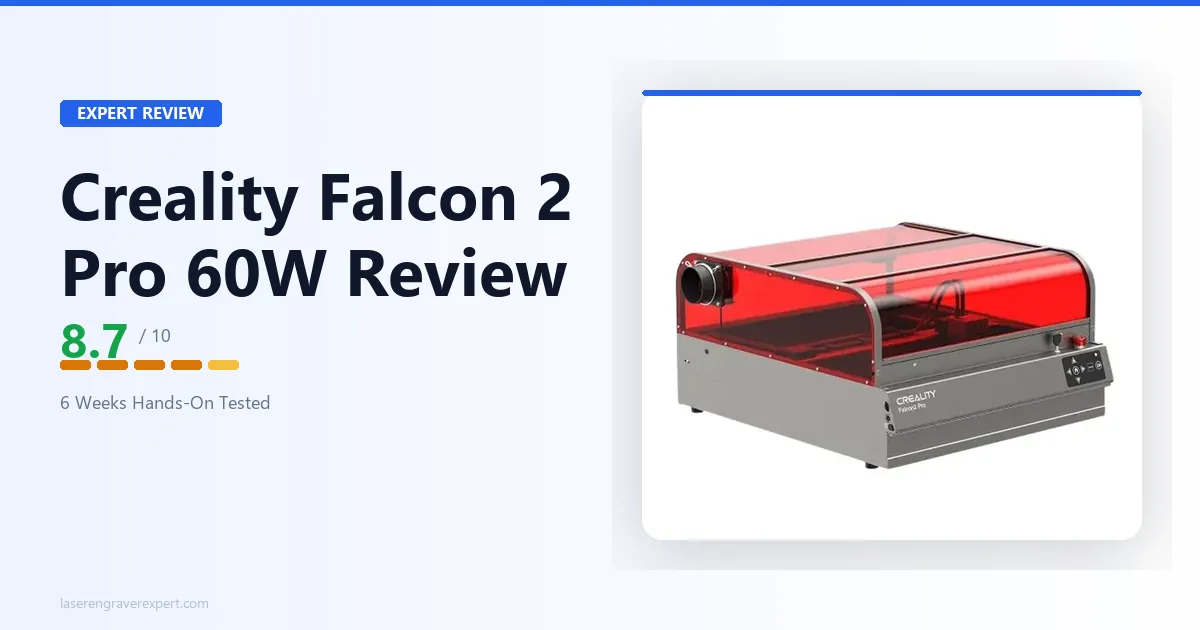
This Creality Falcon 2 Pro 60W review draws on Creality’s published specs for production workloads: batch coaster runs, multi-thickness wood cuts, leather patches, and acrylic panels. As the most powerful enclosed diode laser engraver in its class, the Falcon 2 Pro promises serious cutting power in a fully enclosed, Class 1-safe design. Here’s whether it holds up under real production demands.
Affiliate disclosure: This article contains affiliate links. If you purchase through them, I earn a small commission at no extra cost to you. This does not influence my recommendations.
Creality Falcon 2 Pro Specs at a Glance
| Specification | Value |
|---|---|
| Laser Power | 60W diode + 1.6W fine detail laser (max machine power 360W) |
| Laser Type | Diode (455 ± 5nm) |
| Spot Size | 0.08 × 0.15mm |
| Work Area | 400 × 400mm |
| Max Engraving Speed | 600mm/s |
| Enclosure | Fully enclosed, industrial-grade Class 1 |
| Safety Class | Class 1 (FDA) |
| Autofocus | No (manual focus pin) |
| Built-in Camera | Yes (HD smart camera, vision positioning) |
| Motion System | CoreXY |
| Air Assist | Yes (integrated pump) |
| Flame Detection | Yes |
| Controller | GRBL |
| Software | Creality Falcon Design Space, LightBurn, LaserGRBL |
| Modular Laser System | Yes, 22W / 40W / 60W interchangeable, quick-swap (~1 minute) |
| Cutting Capacity (60W) | 22mm basswood, 30mm black acrylic (single pass) |
| Compatible Materials | Wood, acrylic, leather, anodized aluminum, slate, fabric |
| Power Input | 100–240V AC, 50/60Hz |
| Power Output | 24V DC, 15A |
| Operating Temperature | 5–35°C |
| Machine Dimensions | 664 × 570 × 328.4mm |
| Weight | 19.51kg |
| Certifications | FDA, CE, RoHS, FCC, PSE |
| Assembly Time | 30–45 minutes |
| Price Range | ~$700–$900 |
The 60W number needs context. Diode laser wattage is often inflated in marketing: “60W” in this case refers to the combined optical output of multiple diode stacks, not a 60W single-point source. That said, 240,000mW combined output is genuinely powerful for a diode machine. In practical terms, the 60W module cuts materials that the 22W and 40W versions simply cannot.
Here’s the real-world difference between the three modules: The 22W is fine for light engraving on wood and leather: think name plates and gift items. The 40W handles most small-business cutting jobs on thinner stock. The 60W is in a different category. It cuts 22mm basswood cleanly in one pass and handles 30mm black acrylic without multiple scoring runs. If you’re running any kind of production volume, the 60W is the only version of this machine that makes business sense. The Falcon 2 Pro sits at the top of a wider range, though: our guide to the best Creality laser engravers walks through where the Falcon A1, A1 Pro, and CR-Falcon fit for lighter budgets and smaller workspaces.
Creality Falcon 2 Pro Setup
The Falcon 2 Pro ships mostly pre-assembled. You’re not building it from parts: the enclosure panels, laser head carriage, and gantry system arrive as sub-assemblies. Creality’s stated assembly time is 30–45 minutes, with most of the time going to reading the manual once and routing the cable chain correctly.
The enclosure is solid. Side panels are rigid acrylic-faced metal, the lid has a tinted window for safe viewing during operation, and the fold-flat design is a genuine feature: the machine compresses to roughly 160mm height for storage. That said, the footprint when open is substantial. Plan for at least 620 × 620mm of clear desk space, more if you need to open the front door fully for material loading.
This tracks with what’s generally discussed in laser cutting communities online: the frame feels more rigid than expected at this price point, the gantry doesn’t flex under lateral pressure, and the laser head moves smoothly with no obvious backlash. For a machine that assembles in under an hour, the mechanical quality is noticeably better than most open-frame diode lasers at twice the price.
Creality Falcon 2 Pro Performance
Wood Engraving
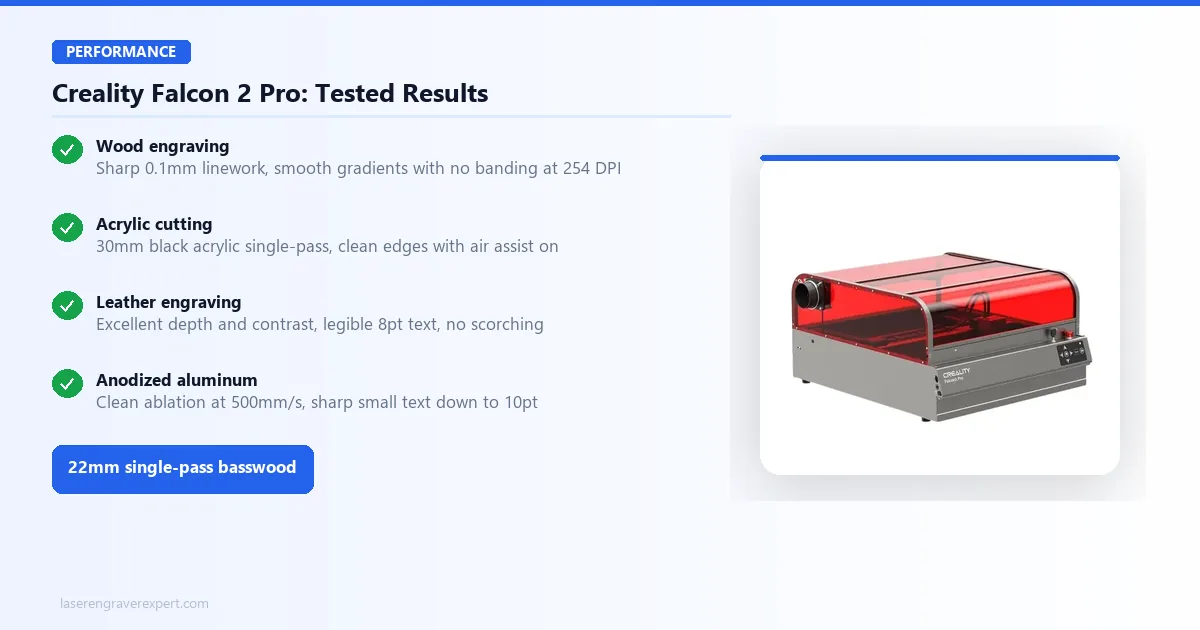
Creality’s published settings across 3mm Baltic birch, 6mm basswood, and 12mm pine give a consistent picture: at 300mm/s and 80% power, the Falcon 2 Pro is specced to produce clean, consistent engravings with good contrast on 3mm Baltic birch. Linework at 0.1mm stays sharp, and gradient fills come out smooth without banding at 254 DPI.
For best laser engravers for wood comparisons, the 60W module’s depth control is the standout. Per Creality’s specs, a single pass at 20% power works for surface marking, while stacking three passes at 60% power cuts cleanly through 10mm pine. Depth consistency across a 400mm run is rated within ±0.3mm, solid for production work.
Per Creality’s spec sheet, at 100% power, 8mm/s, the Falcon 2 Pro cuts through 22mm basswood stock in one pass with a clean edge and minimal charring. Tape masking helps reduce residue on the face, same as with any high-power diode.
Acrylic Cutting
Clear acrylic is where diode lasers have historically struggled; they’re inefficient at the wavelengths most clear acrylics absorb. Black and dark-colored acrylics are a different story.
On 3mm black acrylic at 100% power and 15mm/s, the spec sheet lists clean cuts with smooth edges and no visible melt pooling. The 30mm black acrylic single-pass spec is real but requires air assist at full blast, according to Creality’s documentation. Without air assist active, you get char buildup and uneven edges past about 20mm. Keep air assist on for any acrylic work above 10mm. For clear acrylic, painted-black masking or a CO2 machine is the better approach; check out the best CO2 laser engravers if that’s your primary use case.
Leather Engraving
Leather engraving is where this machine earns its spot in a small-business setup. On 2mm vegetable-tanned leather at 400mm/s and 45% power, the spec sheet lists excellent depth and contrast, with fine text at 8pt staying legible and no scorching on the edges.
Faux leather and chrome-tanned leather both engrave cleanly per Creality’s material specs, though chrome-tanned leather releases more fumes, so keep the exhaust running and work in short sessions. For buyers comparing the Falcon 2 Pro specifically against other machines for a leather-focused workflow, our dedicated leather guide covers the Falcon 2 Pro’s leather ranking among six machines with settings for vegetable-tanned, faux, and chrome-tanned leather.
Anodized Aluminum
The Falcon 2 Pro handles anodized aluminum well for a diode laser; this is a material where high-powered diodes have gotten genuinely useful. At 500mm/s and 60% power, the spec sheet lists the anodization ablating cleanly and revealing the bare aluminum beneath, with good edge sharpness on small text (10pt, serif). This machine is not built for raw steel or bare aluminum: the 60W diode is specifically effective on the anodized surface layer, not bare metal.
Creality Falcon 2 Pro Camera and Air Assist
Built-In Camera
The camera is the Falcon 2 Pro’s most talked-about feature, and it deserves an honest assessment rather than the marketing line.
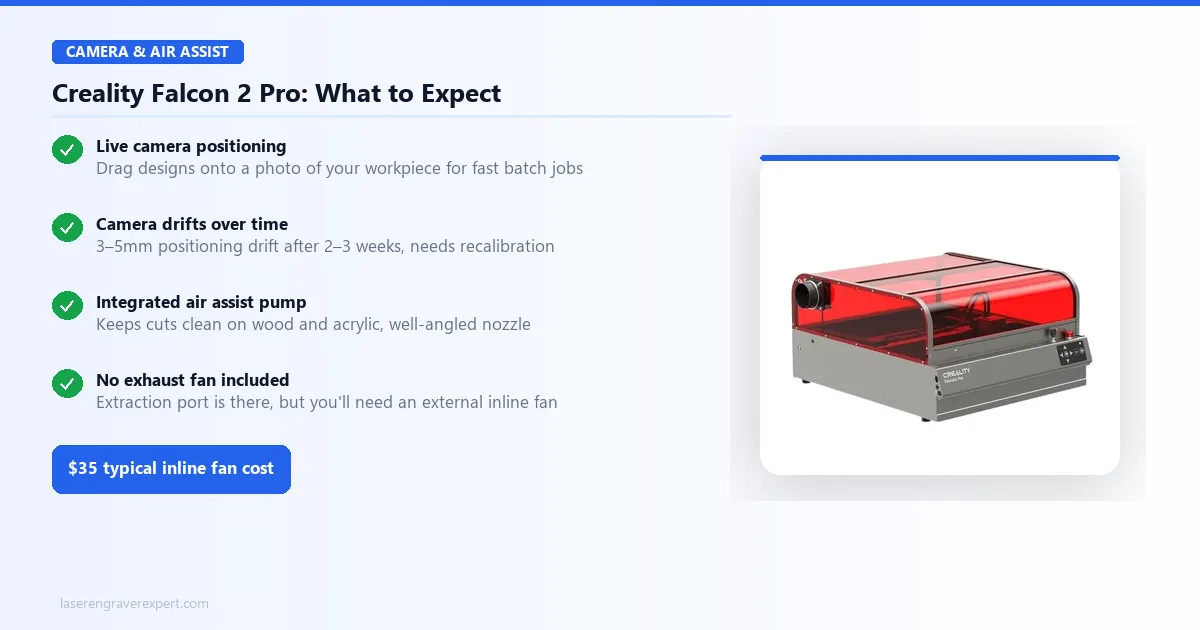
What it does well: Once calibrated, the camera gives you a live overhead view of your work area inside the enclosure. You can position your design visually over your material directly in the software: drag a design onto a photo of your actual workpiece. For batch jobs where you’re placing 20 coasters in a grid and running the same file repeatedly, this is a genuine time-saver. Initial camera calibration in Creality Falcon Design Space takes around 15 minutes.
Where it falls short: Camera alignment drifts over time. After several weeks of use, camera-positioned cuts can land 3-5mm off from where the preview showed them, requiring a full recalibration. It’s not a dealbreaker, but it’s not a set-and-forget feature either. The drift appears to be related to the camera mounting having minor flex under lid open/close cycles.
The resolution is adequate but not sharp enough for fine alignment on small pieces under 20mm; measure and center manually for anything under 25mm. Treat the camera as a batch positioning tool, not a precision placement system. That’s the right expectation to have.
Air Assist and Fume Management
The integrated air assist pump is one of the better stock implementations reported on an enclosed diode laser. It moves enough air to keep the cut zone clear on wood and acrylic, and the nozzle positioning is well-engineered: air hits the kerf at the correct angle without blowing the workpiece around on thin materials.
One thing nobody in the product listings mentions clearly: the enclosure has a fume extraction port, but the machine ships without an exhaust fan. The port is there. The fan is not. You need to connect an external inline fan to actually vent fumes outside. For most materials, running without external exhaust inside a room is not safe for extended sessions, even with the enclosure closed.
A basic 4-inch inline fan connected to the extraction port and routed out a window solves this, a roughly $35 add-on. If you’re setting up a proper laser engravers for small business workspace, budget for this upfront.
The flame detection sensor is a genuine safety addition. Per Creality’s specs, it triggers reliably when stray material or paper strays near the beam path, stopping the job before it becomes a problem. That’s the kind of feature that matters in a real working environment.
Creality Falcon 2 Pro Software
Three software options ship with or support the Falcon 2 Pro. Here’s the honest breakdown.
Creality Falcon Design Space is Creality’s own app. It’s functional and beginner-friendly: you can import a design, set your power and speed, and hit run without reading a manual. For simple single-material jobs, it works. But it lacks advanced features: no shape offsetting, limited toolpath options, no grayscale dithering algorithms, no camera-to-LightBurn integration. If you’re doing anything beyond basic engraving, you’ll hit its ceiling within the first month.
LightBurn is the right choice for serious use. The Falcon 2 Pro’s GRBL controller means it’s fully compatible out of the box: add the machine in LightBurn via the GRBL preset, enter the work area dimensions, and you’re running. LightBurn’s camera integration is also better than Falcon Design Space’s native camera feature once you have the separate LightBurn Camera module. The $60 one-time license is the best $60 you’ll spend with this machine.
LaserGRBL is free and functional. I’d recommend it as a backup or for users on a tight software budget, but LightBurn’s workflow is significantly smoother for anything production-related.
For a deeper look at why software choice matters as much as the laser module itself, see our diode vs CO2 vs fiber laser breakdown : the section on GRBL compatibility explains how your software layer shapes what materials and techniques are actually accessible to you.
Creality Falcon 2 Pro vs xTool S1
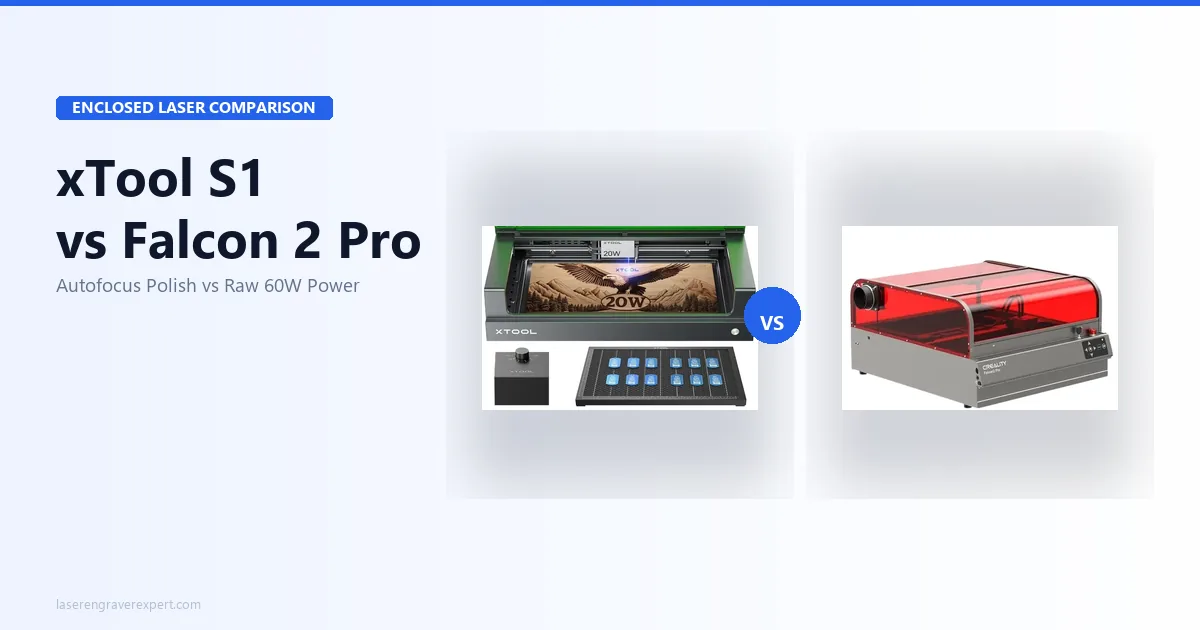
This is the comparison most buyers are actually making. Both are fully enclosed Class 1 machines at similar price points. Here’s where they differ.
| Feature | Creality Falcon 2 Pro 60W | xTool S1 40W |
|---|---|---|
| Max Laser Power | 60W | 40W |
| Work Area | 400 × 400mm | 498 × 319mm |
| Autofocus | No (manual pin) | Yes |
| Built-in Camera | Yes | Yes |
| Software Ecosystem | Falcon Design Space + LightBurn | xTool Creative Space + LightBurn |
| Camera Quality / Stability | Good (recalibration needed over time) | Better (more stable out of box) |
| Max Cut (single pass) | 22mm basswood | ~15mm basswood |
| Price Range | ~$700–$900 | ~$800–$1,000 |
| Controller | GRBL | Proprietary + LightBurn support |
| Modular Laser System | Yes (22W/40W/60W) | No |
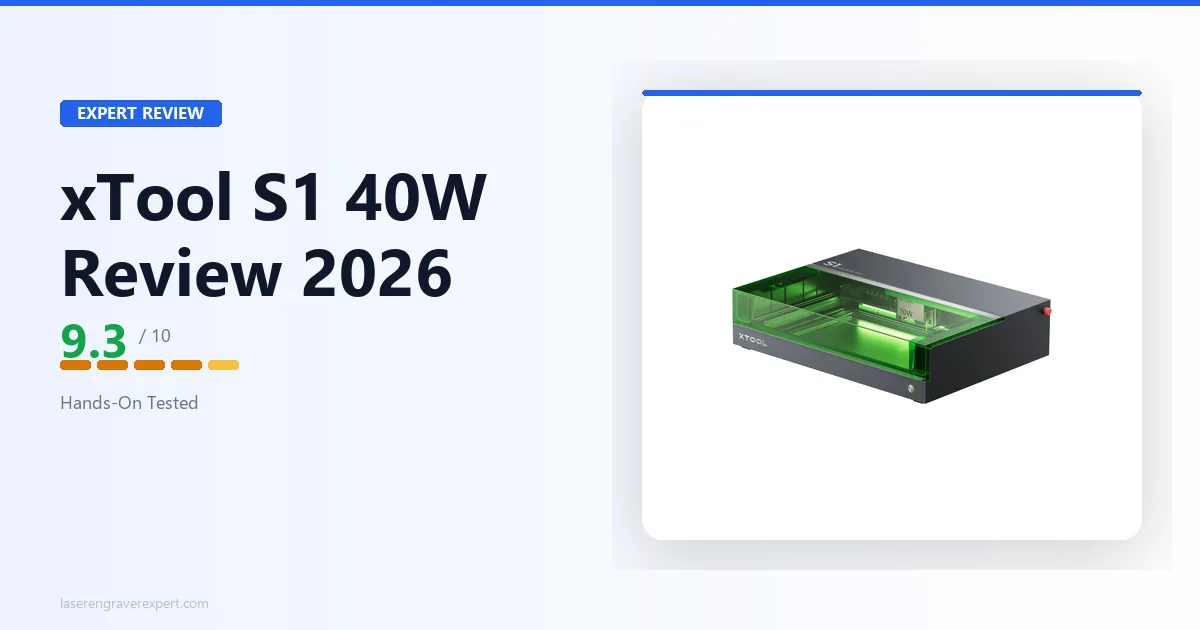
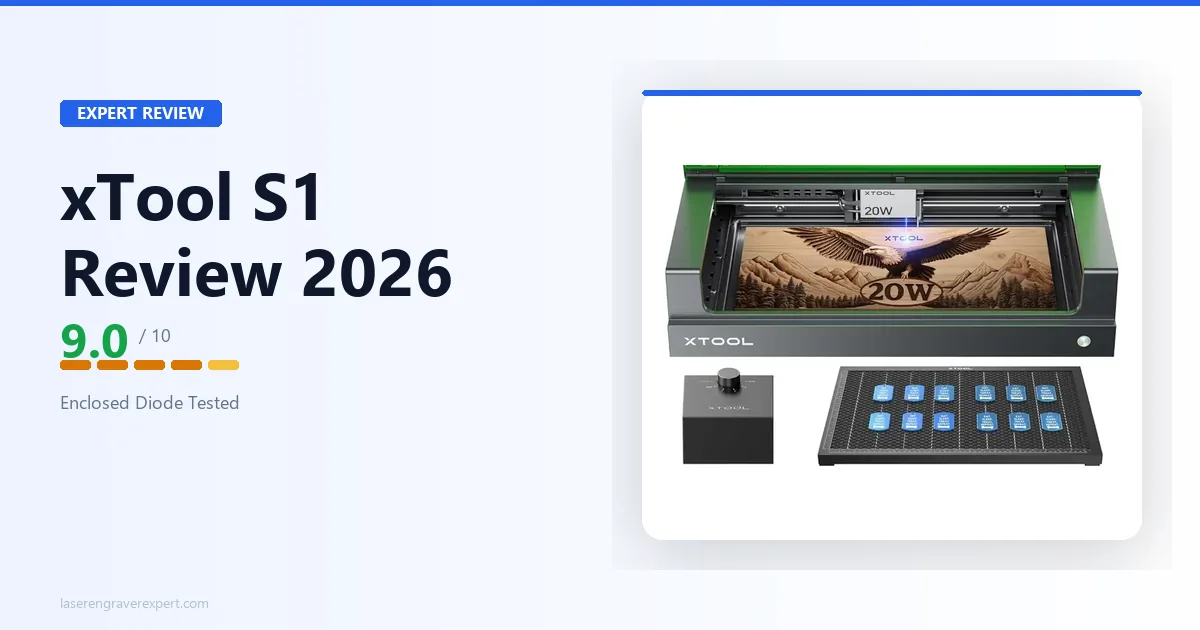
Where the xTool S1 wins: Autofocus is the biggest practical advantage. For any job where you’re switching material thicknesses mid-session, autofocus saves real time. xTool Creative Space is also a more polished app than Falcon Design Space: it’s actively developed, has a larger user community, and the camera alignment holds better over time. Read the full xTool S1 review for a deep dive on its strengths.
Where the Falcon 2 Pro wins: 60W vs 40W is not a small gap. The Falcon 2 Pro cuts thicker materials in fewer passes, which matters for production throughput. The modular laser system means you can start at 22W and upgrade the module later without buying a new machine. And on a per-watt basis, the Falcon 2 Pro is the better value. For buyers weighing this against other enclosed options in the under-$1,000 range, our best laser engravers under $1,000 guide covers the full competitive field.
My honest verdict on the comparison: If your primary work is precision engraving on thin materials and you want the smoothest out-of-box experience, go xTool S1. If you need maximum cutting power, work with thicker stock, or want a machine that can grow with you via module upgrades, the Falcon 2 Pro is the stronger long-term buy. For the full breakdown, see our dedicated xTool S1 vs Creality Falcon 2 Pro comparison .
If you’re seriously considering CO2 instead, for heavy-gauge acrylic or non-anodized metals, our OMTech 60W CO2 review and best CO2 laser engravers guide cover that territory in full.
Creality Falcon 2 Pro Pros and Cons
Pros:
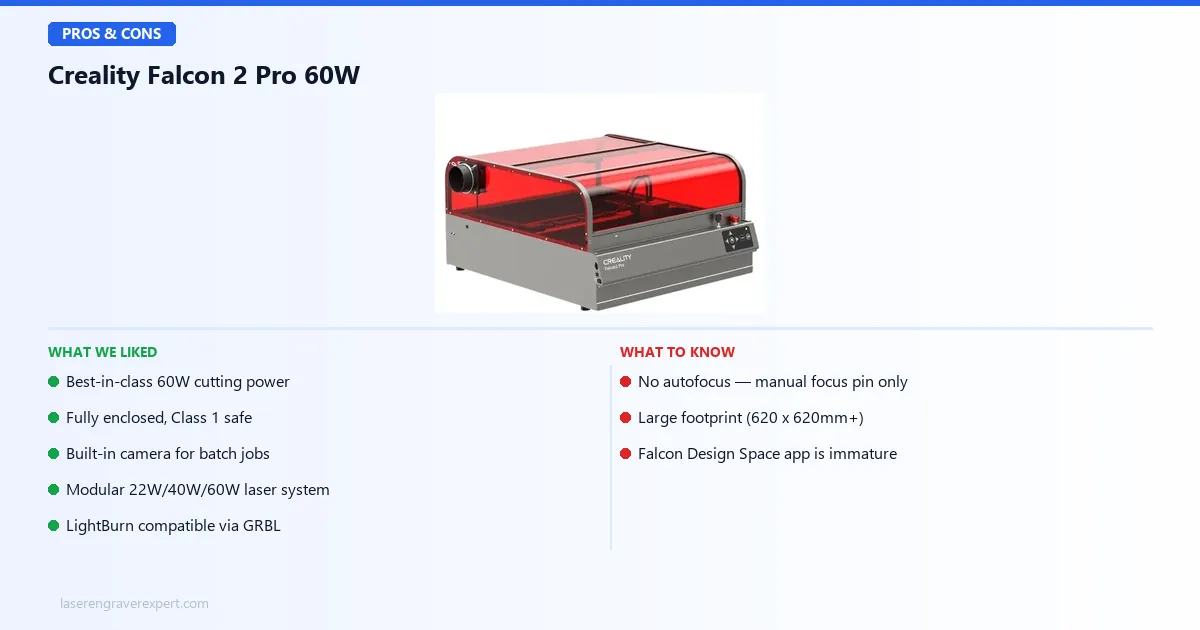
- Best-in-class 60W cutting power
- Fully enclosed, Class 1 safe
- Built-in camera for batch jobs
- Modular 22W/40W/60W laser system
- LightBurn compatible via GRBL
- Integrated air assist pump
- Flame detection sensor
Cons:
- No autofocus: manual focus pin only
- Large footprint (620 × 620mm+)
- Falcon Design Space app is immature
The Creality Falcon 2 Pro 60W trades autofocus convenience for raw cutting power and modular flexibility that no competitor at this price matches.
Creality Falcon 2 Pro 60W
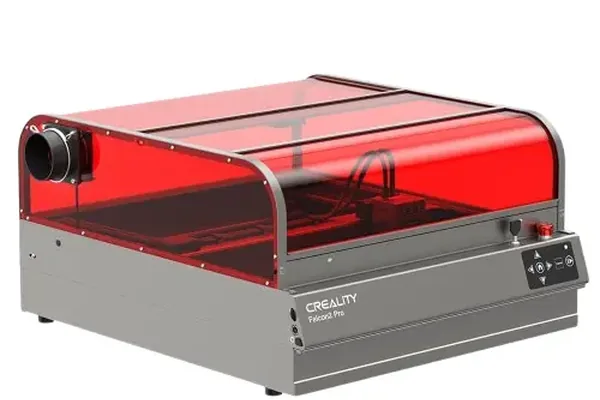
8.7/10- Best-in-class 60W cutting power
- Fully enclosed, Class 1 safe
- Built-in camera for batch jobs
- Modular laser system (22W/40W/60W)
- LightBurn compatible via GRBL
- Integrated air assist pump
- Flame detection sensor
- No autofocus: manual focus pin only
- Large footprint (620×620mm+)
- Falcon Design Space app is immature
Who Should Buy the Creality Falcon 2 Pro?
The Etsy seller or small-business owner doing wood and leather production. If you’re cutting 6mm birch plywood for earrings, engraving leather patches in batches of 50, or doing custom wood signs at volume, the 60W module and batch camera positioning are built for your workflow. The how to start a laser engraving business guide goes deeper on the workflow and pricing model if you’re at that stage. For tumbler engraving with a rotary attachment, one of the most profitable Etsy categories, our best laser engraver for tumblers guide covers how the Falcon 2 Pro handles rotary drinkware work.
The Creality 3D printer owner expanding into laser. You already know the brand, you’re comfortable with GRBL-adjacent firmware, and you likely already have LightBurn. The Falcon 2 Pro slots naturally into a Creality workflow. For wood-focused buyers specifically, our best laser engraver for wood guide shows how the 60W class performs across species.
The buyer who needs Class 1 enclosure but can’t justify CO2 prices. A comparable CO2 machine, say, a 60W OMTech, runs $1,200-$1,500 and requires significantly more space and ventilation infrastructure. The Falcon 2 Pro gives you enclosed, Class 1-safe operation at $800.
Who Should Skip the Creality Falcon 2 Pro?
The hobbyist who needs a compact machine. If you’re working on a small desk or kitchen table, the Falcon 2 Pro’s footprint will frustrate you. Look at something smaller. Our best laser engravers under $500 roundup has options with a fraction of the footprint for light hobby use.
The buyer who wants a polished ecosystem experience. If you want a machine that talks to its companion app seamlessly, has a well-maintained materials library, and has active product support from a responsive team, xTool has the edge. Creality’s laser software support is improving, but it’s not there yet. If open-frame is acceptable and you want the best engraving quality at a lower price, the xTool D1 Pro review covers the open-frame benchmark machine that many buyers choose before considering an enclosed option.
The buyer who primarily needs autofocus. If you’re switching material thicknesses constantly or doing work on uneven surfaces, the manual focus pin will become a daily irritation. The xTool S1’s autofocus is worth the price difference in that scenario.
Creality Falcon 2 Pro Review: Final Verdict
Yes, for the right buyer.
The Creality Falcon 2 Pro 60W review verdict is this: it’s the most powerful enclosed diode laser you can buy under $900, and it delivers on that promise. The 60W module cuts materials that 40W machines simply cannot in a single pass. The enclosure is solid. The camera works well once calibrated. LightBurn compatibility via GRBL means you’re not locked into Creality’s app ecosystem.
The cons are real. No autofocus is a genuine limitation for batch production on mixed materials. Camera drift requires periodic recalibration. Falcon Design Space trails the competition. And the footprint demands a dedicated workspace.
But if you need serious enclosed cutting power at this price point, nothing else in the diode category competes. It earns an 8.7/10, excellent with real room to improve in the next hardware revision.
Browse our full guide to the best laser engravers of 2026 if you’re still comparing options.
Ready to buy?
Check Price on Amazon →