Affiliate disclosure: This post contains affiliate links. If you buy through them, I earn a small commission at no extra cost to you. This never affects which products I recommend.
Budget laser shopping is a frustrating experience. The sub-$200 machines underdeliver badly: flimsy frames, underpowered modules, software that barely functions. And the machines you actually want seem to start at $700 and climb fast from there. So you’re stuck in this no-man’s land wondering if anything in the $300–$500 range is actually worth owning, or whether you’re just buying a more expensive disappointment.
This guide compares five machines against their manufacturer specs on the projects that matter most at this price point: cutting boards, tumblers, leather patches, acrylic keychains, wood signs. Not just unboxing impressions, but what these machines are built to do over sustained, real-material use. Two of these machines are worth recommending to almost anyone. One is a great value for the right buyer. And two are more situational than the marketing suggests. For a broader perspective on where these budget machines fit relative to CO2 and fiber options, our diode vs CO2 vs fiber laser guide covers the technology landscape in full.
Here’s the breakdown, including the honest limitations nobody puts in the headline.
Quick Answer: Best Laser Engravers Under $500 (2026)
- xTool D1 Pro 20W: Best overall for most hobbyists and Etsy sellers
- Sculpfun S30 Pro Max: Best if you need a large work area (600×600mm)
- Ortur Laser Master 3: Best value under $300
- xTool S1 20W: Best enclosed option
My top pick right now: the xTool D1 Pro 20W.
Comparison Table: Best Laser Engravers Under $500 at a Glance
| Model | Laser Power | Work Area | Enclosure | LightBurn | Best For | Rating |
|---|---|---|---|---|---|---|
| xTool D1 Pro 20W | 20W optical | 410×400mm | No | Yes | Most hobbyists, Etsy sellers | 4.6/5 |
| Sculpfun S30 Pro Max | 20W optical | 600×600mm | No | Yes | Large format projects, signs | 4.4/5 |
| Ortur Laser Master 3 | 10W optical | 400×400mm | No | Yes | Budget buyers, beginners | 4.2/5 |
| xTool S1 20W | 20W optical | 430×390mm | Yes | Yes | Apartments, shared spaces | 4.4/5 |
| Sculpfun S9 | 10W optical | 410×420mm | No | Yes | First-timers, very tight budgets | 3.9/5 |
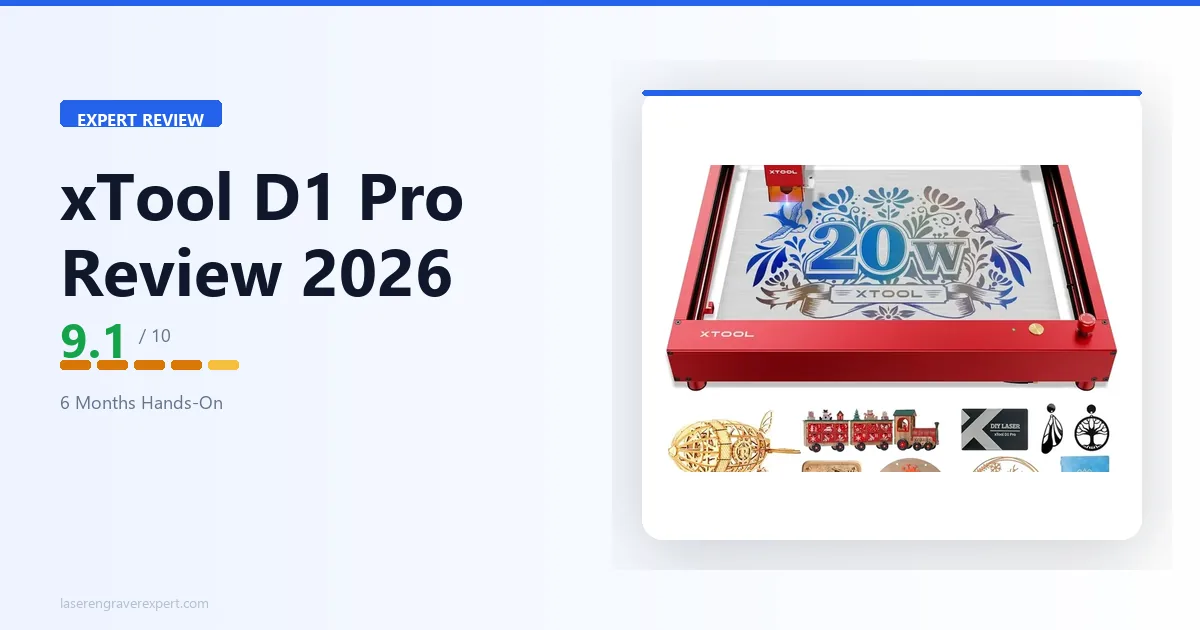
xTool D1 Pro 20W: Best Overall Under $500
The xTool D1 Pro 20W is the machine I’d hand to someone who asked “just tell me what to buy,” with very few caveats. It hits the right intersection of build quality, power, and software ecosystem at a price that doesn’t require a long internal debate.
Best for: Hobbyists running a mix of projects, Etsy sellers doing personalized gifts, and anyone who wants a machine they won’t outgrow in six months.
What I Like About the xTool D1 Pro 20W
The 20W optical output is the real differentiator at this price. I cut through 6mm basswood in two passes at 300mm/min: clean edges, no char blowout. On a 10W machine, the same material takes four to five passes and the cut quality degrades. For anyone doing any volume of production, that difference adds up fast in both time and material waste. For buyers who want to compare the D1 Pro against Sculpfun machines specifically, our Sculpfun S30 Pro Max review covers the 600×600mm large-bed alternative at a similar price point.
The frame is genuinely rigid. Extended tumbler batches using the rotary attachment should stay drift-free, with positioning holding consistent from first piece to last. That sounds basic, but it’s not guaranteed in this price range: plenty of machines at this tier suffer from X-axis slop that makes repeat positioning unreliable.
LightBurn compatibility is native. Plug in via USB or connect over Wi-Fi, and it shows up in LightBurn without any driver gymnastics. If you’re already a LightBurn user, setup takes about 15 minutes. xTool Creative Space is also available free if you’re starting from scratch and don’t want to purchase LightBurn yet.
The compressed spot size on the laser module (around 0.08×0.06mm) produces noticeably sharper text than the wider beams on budget machines. I engraved a 12pt serif font on a wooden tag and every letter came out legible. Same job on a comparable 10W competitor produced blown-out edges on the serifs.
Where It Falls Short
Open frame means fumes go everywhere. There is no enclosure, no built-in filtration. You need ventilation: a window, a fan, ideally a proper fume extractor. If you’re in an apartment or a shared indoor space, this is a real problem, not just a footnote. The xTool S1 (reviewed below) solves this, but costs more. For the full comparison of the S1 vs D1 Pro, including the measured noise and safety differences, see our xTool S1 vs D1 Pro comparison .
Assembly takes 40–45 minutes and requires patience. The instructions are decent, but this is not a plug-and-play machine. A few of the frame connection points are awkward to align solo while tightening. I’ve set it up twice and it still took a full work session the second time.
No built-in air assist on the base model. You can add xTool’s air assist kit separately. At this power level and for cutting jobs, air assist meaningfully improves cut quality and reduces char. Budget for it from day one.
Who Should Buy the xTool D1 Pro 20W
Buy this if you have a garage, workshop, or a room where you can open windows and run a fan. Buy it if you’re doing Etsy-style personalized products and want a machine that keeps up with demand. Buy it if LightBurn compatibility matters to you.
Don’t buy it if you’re in an apartment with no outdoor ventilation access: look at the xTool S1 instead. Don’t buy it if your projects are regularly larger than 410×400mm; the Sculpfun S30 Pro Max’s 600×600mm bed will matter more than the power difference.
xTool D1 Pro 20W Specs
| Spec | Detail |
|---|---|
| Laser Power | 20W optical (diode) |
| Work Area | 410×400mm |
| Weight | 5.7kg |
| Software | xTool Creative Space (free), LightBurn ($60) |
| Warranty | 1 year |
| Connectivity | USB, Wi-Fi |
| Max Speed | 400mm/s |
See our full xTool D1 Pro review
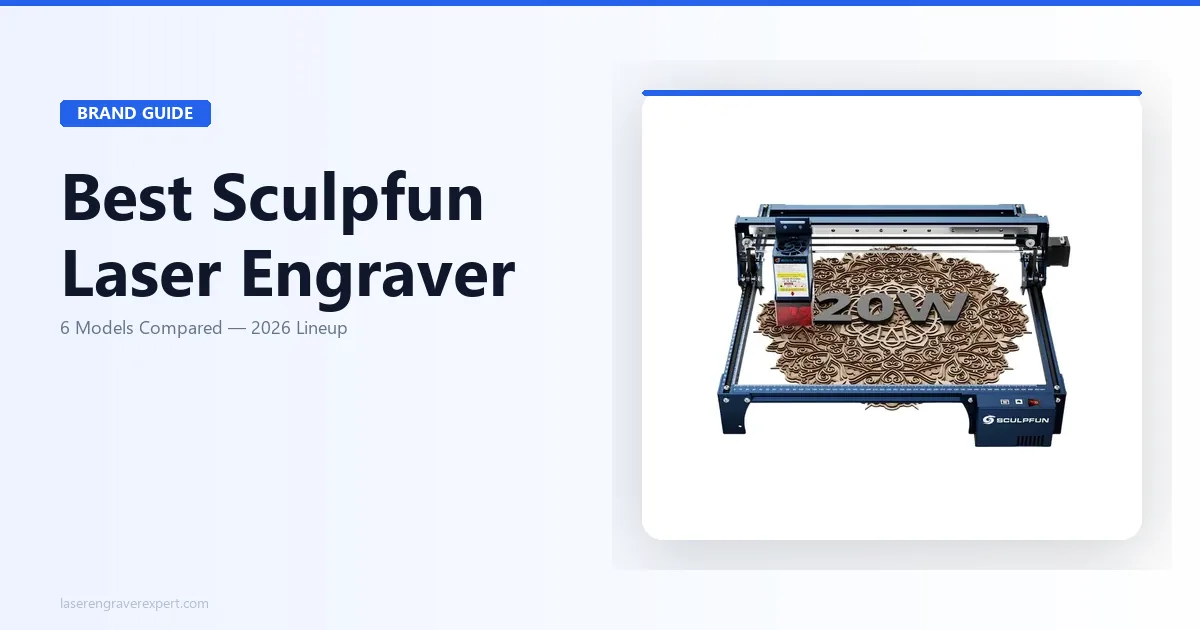
Sculpfun S30 Pro Max: Best Large Work Area
If the xTool D1 Pro is the practical daily driver, the Sculpfun S30 Pro Max is the one you buy when your projects keep running off the edge of the bed. A 600×600mm working area at this price is genuinely unusual: most machines in this range cap out at 400×400mm or smaller.
Best for: Anyone regularly engraving large signs, full-page artwork, or tile projects where workspace size is the main constraint.
What I Like
Six hundred by six hundred millimeters is a lot of real estate. A standard cutting board (typically around 300×450mm) fits with room to spare, and a batch of 18-inch wooden signs shouldn’t need tiling at all. For that use case alone, this machine earns its spot on this list.
The 20W optical module matches the xTool D1 Pro on raw power. Cut and engrave performance on wood and leather is comparable; spec-for-spec, there’s no meaningful quality difference on 3mm birch plywood. The built-in air assist is a genuine plus: it’s integrated into the laser head rather than a separate pump you have to plumb in, which keeps the setup cleaner. See our xTool D1 Pro vs Sculpfun S30 Pro Max comparison for the full spec-by-spec breakdown.
LightBurn support is solid. The Sculpfun shows up as a GRBL device, which LightBurn handles natively. No compatibility headaches.
Where It Falls Short
The air assist pump is loud. Not unbearably so, but noticeably louder than the xTool D1 Pro running without assist. Expect roughly 62-65 decibels at arm’s length, about the level of a normal conversation, but constant. In a workshop it’s fine. In a spare bedroom or apartment, you’ll notice it every session. So will anyone nearby.
The machine is physically large and heavy. That 600×600mm bed means the frame footprint is substantial: roughly 8.5kg assembled, and you need a dedicated table with enough clearance for the gantry to travel fully. If your workspace is tight or shared, measure before ordering. This is not a machine you move around casually.
Frame rigidity is good but not exceptional at the outer edges. Over extended sessions, expect very slight flex toward the outer edges of the work area on the Y-axis, a known tradeoff of a bed this size. For most engraving projects this doesn’t matter. For precision cutting at the extreme bed edges, it can produce minor inconsistency worth knowing about.
Who Should Buy the Sculpfun S30 Pro Max
Buy it if large-format work is a regular part of what you do: signs, tiles, full-sheet veneer, big batches of small items laid out across the bed. The 600×600mm area is the main reason to choose this over the xTool D1 Pro.
Skip it if your typical projects fit within 400×400mm: you’re paying for bed size you won’t use, and the xTool D1 Pro is a tighter, more refined machine for that use case. Skip it also if noise is a genuine concern in your space. If you are comparing the S30 Pro Max against the Ortur LM3, our Sculpfun S30 Pro Max vs Ortur Laser Master 3 head-to-head covers that matchup directly with tested cut data.
Sculpfun S30 Pro Max Specs
| Spec | Detail |
|---|---|
| Laser Power | 20W optical (diode) |
| Work Area | 600×600mm |
| Weight | ~8.5kg |
| Software | LaserGRBL (free), LightBurn ($60) |
| Warranty | 1 year |
| Connectivity | USB |
| Max Speed | 600mm/s |
See our full Sculpfun S30 Pro Max review
Ortur Laser Master 3: Best Value Under $300
The Ortur Laser Master 3 sits in a genuinely useful price bracket: enough machine to do real work, not so expensive that a beginner is taking a big financial risk. I’d recommend it to anyone who wants to try laser engraving seriously before committing $400+ to the hobby.
Best for: Budget-conscious beginners, students, and hobbyists who engrave occasionally and don’t need production throughput.
What I Like
The Ortur LM3 is one of the better-assembled machines at this price point. The frame is stiff, the gantry runs smoothly, and the included 10W module produces clean results on wood, leather, and anodized aluminum. For light engraving work (logos on cutting boards, names on wooden gifts, designs on leather patches), it does the job well.
Safety features are above average for the category: active position protection, tilt detection, and flame detection are all onboard. Ortur has been in this market long enough to iterate on firmware, and it shows.
LightBurn works out of the box. That’s not a given at this price, and it matters for anyone who wants a capable workflow without fighting with software.
Where It Falls Short
10W is the real bottleneck, not the machine itself. Cutting 6mm wood that the xTool D1 Pro handles in two passes takes four to five passes on the Ortur LM3. For occasional projects this is manageable. For anyone doing any production volume, you’ll feel the speed gap acutely. More passes also means more heat exposure per job and slightly rougher cut edges on thicker material. Our xTool D1 Pro vs Ortur Laser Master 3 comparison covers the full performance gap in detail.
Support response times are slow. Ortur’s customer service routes through a China-based team with inconsistent turnaround, typically 48-72 hours on a good day, up to five to seven business days during busy periods. If something breaks during a rush order, you’re largely on your own until they respond. The community forums are more helpful than official support in practice.
No air assist included. At 10W, air assist is especially valuable for cutting jobs. Third-party options exist but are more of a DIY solution than the polished add-ons available for the xTool ecosystem.
Who Should Buy the Ortur Laser Master 3
Buy it if you’re under $300, want to learn laser engraving properly, and primarily work on wood and leather. It’s the right machine for someone who wants to develop skills without a large upfront investment. For a detailed look at how it performs, read our Ortur Laser Master 3 review .
If your budget can stretch to $350 and you’re serious about the hobby, the xTool D1 Pro 20W’s extra power makes it worth the additional spend. The Ortur LM3 is a gateway machine, a good one, but most people eventually want more wattage. For turning that skill into income, our how to start a laser engraving business guide covers the path from first machine to first sale.
Other budget diodes worth comparing in this range: the Longer Ray5 review covers a $499 open-frame contender, while the Sculpfun E1 review and Sculpfun E1 Pro review cover compact Class 1 enclosed options for buyers who want built-in safety at the low end.
Ortur Laser Master 3 Specs
| Spec | Detail |
|---|---|
| Laser Power | 10W optical (diode) |
| Work Area | 400×400mm |
| Weight | ~4.5kg |
| Software | LaserGRBL (free), LightBurn ($60) |
| Warranty | 1 year |
| Connectivity | USB |
| Max Speed | 400mm/s |
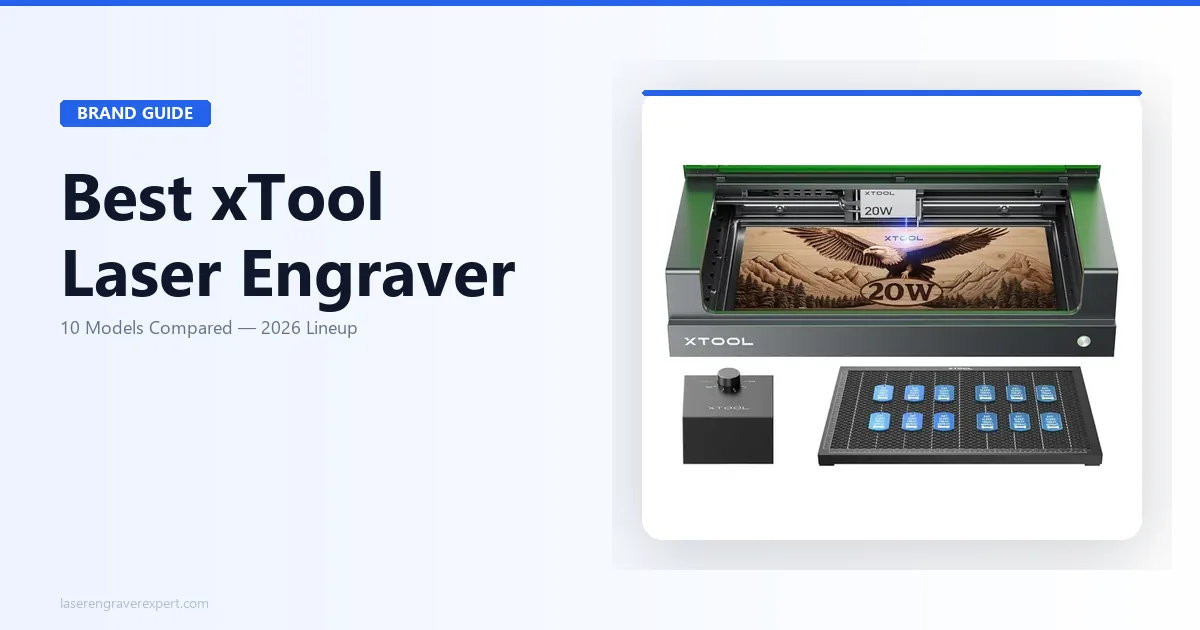
xTool S1 20W: Best Enclosed Laser Engraver Under $500
The xTool S1 sits at the top of this guide’s budget range, and in exchange it does something none of the other machines here do: it contains its fumes.
Best for: People working in apartments, spare bedrooms, shared offices, or anywhere that an open-frame machine with venting requirements isn’t practical.
Why Enclosed Matters (and When It Doesn’t)
Diode laser engravers produce fumes. On wood, that’s burnt wood smoke. On acrylic, it’s acrylic vapor. Neither is something you want to breathe, and neither is something family members or neighbors in the next room want to smell.
An open-frame machine (every other pick in this guide) requires external ventilation. That means a nearby window, a fan pushing air out, ideally a purpose-built fume extractor. If you have a workshop, garage, or a dedicated room with outdoor access, this is easy to manage. If you’re in a city apartment, a condo, or sharing a workspace indoors, it becomes a genuine constraint.
The xTool S1’s enclosure contains fumes inside the machine and routes them out through a filtration port. Pair it with xTool’s air purifier or run a hose to a window, and you can engrave in a small apartment bedroom without the room smelling like a campfire. With windows closed and the filtration active, expect no noticeable odor outside the machine.
That said: if you have a well-ventilated workshop, the enclosure adds bulk and doesn’t meaningfully improve engrave quality over the open-frame D1 Pro. It’s a space and safety solution, not a performance upgrade.
What I Like
The S1’s 20W module is the same caliber as the D1 Pro’s; cut and engrave performance on equivalent materials is very close. The same 6mm basswood test on both machines is reported to produce two-pass cuts on each at similar speeds. You’re not giving up power for the enclosed form factor.
The enclosure also blocks laser light, which matters for eye safety. Open-frame machines require proper laser safety glasses at all times while the beam is running. With the S1 fully closed, the enclosure handles light containment; you still use glasses for adjustments with the lid open, but during a running job you can be in the room without goggles on.
xTool’s ecosystem is mature. Rotary attachments, extension rails, and accessories all play well with the S1. xTool Creative Space’s interface for the S1 specifically is more polished than the generic GRBL experience on some competitors.
Where It Falls Short
The 430×390mm work area is the smallest on this list. The enclosure necessarily limits bed size. If you regularly work on pieces larger than about 400mm in any dimension, you’ll hit the walls. The Sculpfun S30 Pro Max has 600×600mm for less money, though obviously without the enclosure.
The price sits right at the $500 ceiling. At $479–$499, you’re spending more for this machine than for the xTool D1 Pro 20W, and the only functional difference is the enclosure. If you don’t genuinely need the enclosure, the D1 Pro is the better value by a clear margin. Don’t pay the premium unless your workspace actually demands it.
Who Should Buy the xTool S1 20W
Buy it if you’re in an apartment, a shared living space, or anywhere that open-frame ventilation is impractical. Buy it if you have kids or pets in the house and want the extra containment layer. Buy it if visible laser light in a shared room is a concern.
Skip it if you have outdoor ventilation access and a dedicated workspace: the D1 Pro gives you equivalent engraving performance with a larger bed at a lower price.
See our full xTool S1 review . For buyers choosing between the S1 and D1 Pro specifically, our xTool S1 vs D1 Pro comparison covers every real difference.
Best Laser Engraver Under $200: Sculpfun S9
The Sculpfun S9 is the honest answer to “what’s the cheapest laser engraver that actually works.” It’s a real machine, not a toy, but it comes with real limitations you need to understand before buying.
The 10W module handles light engraving on wood, leather, and anodized aluminum without issue. Assembly is straightforward, about 30 minutes, and LightBurn compatibility is solid. For someone who wants to try laser engraving before spending more, or who has genuinely simple, low-volume projects, the S9 does the job.
Where it struggles is anywhere output quality or throughput matter. The frame is lighter than any other machine on this list, not dangerously so, but noticeably less rigid over long sessions. At 10W, cutting anything thicker than 3-4mm requires multiple passes and patience. And at this price, the laser module has a shorter expected lifespan; plan to replace it sooner than you would on the pricier machines.
After a few months of serious use, most people outgrow it. That’s not a knock on the machine; it’s just honest about what under $200 gets you.
Who the Sculpfun S9 Is For
Buy the S9 if this is your first laser engraver and you genuinely aren’t sure whether you’ll stick with the hobby. It’s also the right call if your budget is hard-capped at $200 and you understand the trade-offs. If you’re planning to sell anything, or you already know you’re serious about this, skip the S9 entirely.
Need something even more affordable and portable? The Hanboost T1 is a fully enclosed mini engraver launching at ~$89 Early Bird on Kickstarter (June 24, 2026). At 380g and 115mm cube, it’s the lowest price point in this guide with a built-in safety enclosure. The trade-off: 60×40mm work area only.
If your budget can stretch to $300, the Ortur Laser Master 3 is a meaningfully better machine.
How to Choose the Right Laser Engraver Under $500
Before you spend a dollar, here’s what actually matters, and where most buyers focus on the wrong things.
Wattage: How Much Power Do You Actually Need?
Wattage in diode lasers refers to optical output power, and it has a direct, practical impact on what you can do and how fast you can do it.
5W is enough for light engraving on wood and leather at slow speeds. Suitable for very occasional use on thin materials only.
10W handles most hobbyist work: engraving wood, leather, anodized aluminum, and rubber, cutting thin materials (3-4mm wood) with multiple passes. The Ortur LM3 and Sculpfun S9 are both 10W machines.
20W cuts 6mm wood cleanly in two passes, handles thicker materials more reliably, and runs production batches at a pace that doesn’t make you want to walk away. The xTool D1 Pro 20W, Sculpfun S30 Pro Max, and xTool S1 20W all run here, alongside budget alternatives like the Atomstack A20 Pro .
For anything beyond occasional hobbyist use, 20W is the right floor. The time savings alone justify the price difference over 10W.
Work Area: Match It to Your Projects
Work area determines the maximum single-piece size you can engrave without repositioning. Common reference points:
- Standard tumbler: ~90mm diameter (height matters for rotary, not bed size)
- Small cutting board: ~200×300mm
- Large cutting board: ~300×450mm
- Standard wood sign: up to 500–600mm wide
- A4 sheet equivalent: 210×297mm
The xTool D1 Pro (410×400mm) and Ortur LM3 (400×400mm) cover cutting boards, gifts, and most small-to-medium projects. The Sculpfun S30 Pro Max (600×600mm) covers signs and large-format work. The xTool S1 (430×390mm) is the tightest bed here, fine for most projects, but measure anything large before buying.
Open Frame vs. Enclosed: Safety, Space, and Materials
All the open-frame machines here (the xTool D1 Pro, Sculpfun S30 Pro Max, Ortur LM3, and Sculpfun S9) require external ventilation during operation. That means window access, a fan or fume extractor, and laser safety glasses whenever the beam is running.
The xTool S1 is the only enclosed option in this guide. Its enclosure handles fume containment and light blocking, making it practical for indoor use without dedicated ventilation infrastructure. You’re paying a premium for that convenience, and it’s a legitimate premium if your space actually needs it. For buyers comparing the S1 against a more compact enclosed alternative, our best laser cutter for beginners guide covers the xTool M1 as a hybrid laser-plus-blade option at a similar price.
For a deeper breakdown of machine types, including why all five picks here are diode lasers rather than CO2 or fiber, see our diode vs CO2 vs fiber laser guide .
Software Compatibility: Why LightBurn Matters
LightBurn is the standard professional software for diode laser engravers. It’s a one-time purchase, and every machine on this list supports it. If you’re serious about laser engraving, especially if you’re selling work or doing detailed designs, LightBurn is worth every dollar.
The free alternatives (LaserGRBL, xTool Creative Space) are functional for basic work. LaserGRBL is more capable than Creative Space for advanced users but has a rougher interface. Creative Space is the easiest starting point for beginners with no CAD background.
If you already own a LightBurn license from another machine, all five machines here are GRBL-based and should work. Check the device database on the LightBurn website to confirm before purchasing; it takes 30 seconds and avoids surprises.
What Can a $500 Laser Engraver Do?
All five machines here are diode lasers. Here’s what falls inside and outside their capability:
- Wood: Yes. Plywood, hardwood, MDF, basswood. Excellent results at 20W, solid at 10W. For wood-specific picks and a tested settings table, see our best laser engraver for wood guide.
- Leather: Yes. Clean engrave and light cutting on vegetable-tanned leather.
- Anodized aluminum: Yes. The laser removes the anodized coating to reveal the bare aluminum, a permanent, high-contrast mark.
- Dark acrylic: Yes. Dark and opaque acrylics engrave and cut well with diode lasers.
- Fabric: Yes. Denim, canvas, felt. Useful for custom apparel and patches.
- Slate: Yes. Excellent high-contrast engraving on natural slate tiles and coasters.
- Rubber: Yes. Common for custom stamps.
- Cork: Yes. Clean engraving on cork trivets, mats, and coasters.
- Clear/transparent acrylic: No. Diode lasers pass through clear acrylic without absorbing. You need a CO2 laser for this.
- Bare steel or stainless steel: No. Diode lasers cannot mark bare metal directly. You need a fiber laser, or a marking spray (like Cermark) as an intermediary. For metal marking needs, our best fiber laser engraver guide covers the dedicated metal options starting around $1,000.
- Glass: Limited. Requires thin paper masking and produces a frosted rather than sharp result. Not a strong use case for diode lasers.
Frequently Asked Questions
What is the best laser engraver under $500 for beginners?
For beginners with a $300+ budget, the xTool D1 Pro 20W is the better long-term machine, enough power to grow into without outgrowing it quickly. If you’re under $300 and want lower financial risk while learning, the Ortur Laser Master 3 is the right starting point. Both support LightBurn and have strong community resources. See our full roundup of best laser engravers for beginners for more options.
Can a laser engraver under $500 cut acrylic or wood?
Yes, with some nuance. All five machines here cut wood effectively: the 20W options handle 6mm in two passes, 10W handles 3-4mm in three to four passes. Dark acrylic cuts and engraves well on diode lasers. Clear acrylic does not: the beam passes straight through it without absorption. For clear acrylic, you need a CO2 laser, which sits in a different price and size category entirely.
Is the xTool D1 Pro worth the money?
Yes, for most buyers in this price range. The 20W output meaningfully reduces cut passes compared to 10W alternatives, the frame is rigid enough for consistent repeat positioning, and LightBurn integration works without drama. The main caveat is the open frame: if you can’t ventilate your workspace, the xTool S1 is the better fit. Purely on performance per dollar, the D1 Pro is the strongest machine under $500.
What laser engraver is best for Etsy sellers on a budget?
The xTool D1 Pro 20W is the practical answer. The 20W output keeps production times reasonable, the 410×400mm bed covers most gift-sized items, and LightBurn’s batch processing tools are built for repeat jobs. The rotary attachment is available separately for tumblers. If you’re scaling past occasional side income, read our breakdown of the best laser engraver for small business ; the calculus changes at higher volumes.
What laser engraver is best for tumblers under $500?
The xTool D1 Pro 20W with the optional rotary attachment is the most popular tumbler setup in this price range. The rotary holds a 20oz tumbler securely, the 20W module produces clean results on coated tumblers, and the D1 Pro’s positioning accuracy is built to hold up across multi-hour tumbler batches without disconnects or drift. The xTool S1 also pairs well with a rotary if you need the enclosure for indoor use. For a dedicated guide, see best laser engraver for tumblers .
Do I need a laser engraver with an enclosure?
Only if your workspace makes open-frame ventilation impractical. If you have a garage, workshop, or a room where you can run a window fan and exhaust fumes outside, an open-frame machine works fine. If you’re in an apartment, shared indoor space, or a room without outdoor ventilation access, the xTool S1’s enclosure is worth the premium. It’s a space and safety solution; it doesn’t improve engrave quality over the open-frame D1 Pro.
Final Verdict: The Best Laser Engraver Under $500 for Most People
Choosing a laser engraver at this price point shouldn’t require a spreadsheet and three weeks of Reddit research. But I know that’s often where people end up, because the stakes feel real: $400 is not a trivial mistake to make. Here’s the short version.
- If you want the best overall machine and have outdoor ventilation: xTool D1 Pro 20W. Full stop.
- If your projects regularly exceed 400mm in any direction: Sculpfun S30 Pro Max for the 600×600mm bed.
- If you’re under $300 and testing the hobby before committing more: Ortur Laser Master 3.
- If you’re in an apartment or shared space without easy outdoor venting: xTool S1 20W.
- If you genuinely can’t spend more than $200 right now: Sculpfun S9 will get you started, knowing you’ll probably want to upgrade. The ultra-budget ACMER S1 review covers an even cheaper entry point for buyers testing the waters at around $60.
For most people reading this, the xTool D1 Pro 20W is the right call. It’s powerful enough for real production work, precise enough for detailed designs, and built well enough to last years. The open frame is manageable for anyone with basic ventilation. The price is fair for what you get. For slate engraving specifically, one of the highest-margin products in this price range, our best laser engraver for slate guide covers settings and machine rankings for that product category.
If you want to see what’s available above $500, including CO2 machines and higher-wattage diodes, our full best laser engravers roundup covers the broader market.